
Local service guide
Cloud Service Setup in Windsor, ON
Arrange Cloud Service Setup in Windsor, ON by asking a technician for a written scope covering the files you need to move, staff permissions, account ownership, and a demonstrated backup restore. Agree on subscription charges and follow-up support before booking. For a shop or office, include a plan for interrupted uploads and recovery without access to your original equipment.
Choose the work you need completed
Start with a short inventory: computers, staff accounts, shared folders, bookkeeping exports, and any files that you cannot afford to lose. Tell the technician which devices belong to the business and which belong to employees. Identify the person who will approve sharing permissions and keep the account recovery information.
For a file-sharing job, request a demonstration of who can view, edit, and share each folder. For a backup job, request the backup schedule, retention settings, and a restore test. The Cyber Centre advises organizations to identify essential information, decide backup frequency, and test recovery. Ask the technician to explain which of those requirements your chosen service meets. [1]
Compare written quotes by deliverable
Give each candidate the same inventory and ask them to itemize account configuration, migration, permissions, backup testing, staff training, and follow-up. Request separate amounts for labour, software subscriptions, travel, and optional ongoing support. Request a quote for your inventory, migration, backup testing, and support requirements.
Ask what happens if the technician discovers unreadable files, duplicate folders, or an account that you cannot access. Set an approval point before extra work begins. Specify whether the price includes checking upload completion after the appointment and correcting migration errors. Agree on who will verify the result and how you will report a problem.
Keep ownership and access under your control
The Cyber Centre’s managed-service guidance recommends defining access responsibilities and granting only the privileges people need. Ask the technician what access they require, how you can revoke it, and whether they will keep a support account after completion. Request a handover that lets you manage users and recovery settings yourself. [2]
Ask for multi-factor authentication and a recovery method that your business controls. The Cyber Centre recommends different complex passwords for accounts and multi-factor authentication. Enter your own credentials during setup where possible, and agree on how the technician will remove temporary access at handover. [1]
Before moving customer or employee information, ask where the provider stores it, who retains ownership, and how you can export it if you leave. The Cyber Centre’s 2020 managed-service guidance addresses storage location, ownership, retention, and exit arrangements. Treat those as procurement questions; ask a qualified adviser to confirm any legal requirements specific to your business. [2]
Check connectivity before setting a completion date
Ask the technician to measure upload performance at your premises and test it during the hours you expect to transfer files. Provide the size of the material you want to move and ask for a completion estimate that accounts for your normal business use. Agree on a transfer window that leaves you access to essential files.
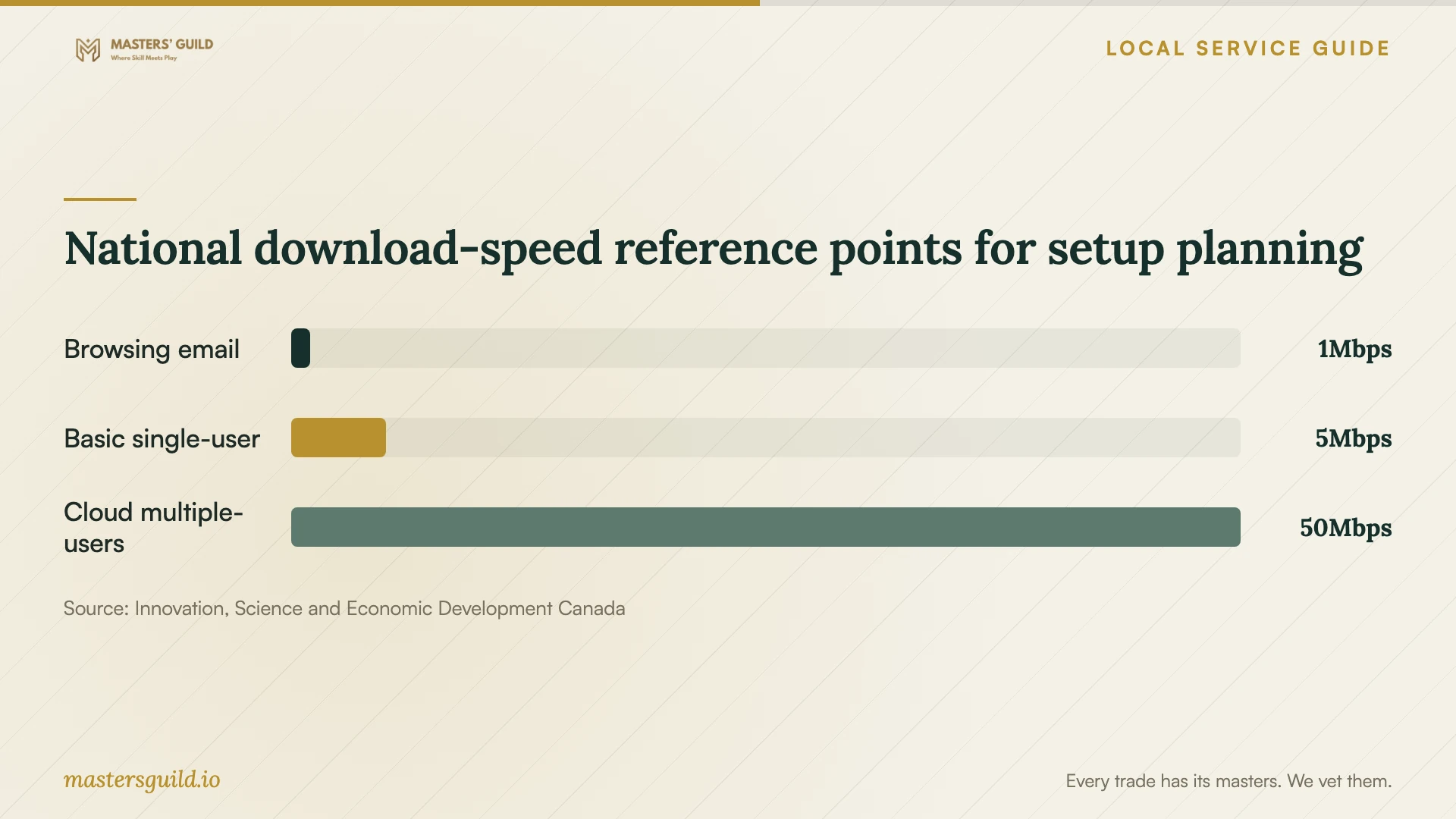
Canada’s Connectivity Strategy distinguishes download and upload speed and gives a national reference target of 50 Mbps download and 10 Mbps upload. Its reference table associates 50 Mbps download with cloud applications and simultaneous users. These national reference values do not establish the speed available at your address or the time your migration will take. [6]
Accept the work after a recovery demonstration
Choose a small sample of essential files and have the technician restore them to a separate folder. Open them, check the contents, and confirm which backup date they came from. Ask for written instructions that another authorized person can follow if your usual administrator is unavailable.
For ongoing support, agree on who checks failures, who receives alerts, and how to reach support during an interruption. The Cyber Centre recommends defining recovery responsibilities, acceptable downtime, backup frequency, and provider participation in recovery testing. Keep the support contact information somewhere you can reach without signing into the affected system. [1] [2]
National download-speed reference points for setup planning
Local details that affect your job
Use ENWIN’s reporting route before booking troubleshooting
If your premises lose power, check ENWIN’s neighbourhood outage map before treating the interruption as a cloud setup fault. ENWIN asks customers to report outages that do not appear on the map and lists 519-255-2727 as its 24-hour emergency line. Its X account is not monitored after hours. Use the map or phone route when an interruption affects a booked migration. [3]
Prepare for planned power interruptions
ENWIN says it notifies affected customers through methods including phone messages, mailed notices, and hand-delivered notices. Update your utility contact information by calling 519-255-2727, and share any interruption notice with your technician before choosing a transfer window. Ask them to document how they will resume the upload and verify completion after power returns. ENWIN notes that circumstances can require schedule changes without prior notice. [4]
Plan recovery without basement equipment
Windsor’s Sewer and Coastal Flood Protection Master Plan identifies surface, basement, and coastal flood-prone areas. That citywide finding does not establish flood risk at your premises. If you keep your only backup beside a basement computer, ask the technician to design recovery without that equipment. Keep a backup separate from your operational equipment and demonstrate that you can restore essential files without the basement computer. The Cyber Centre recommends isolating backups from operational data. [5] [2]
Match the job scope to your business need
| Your need | Scope to request | Acceptance check |
|---|---|---|
| Staff need shared files | Named users, folder permissions, and account handover | Test viewing and editing with the intended staff accounts |
| You need recoverable copies | Backup frequency, retention, restricted access, and restore testing | Restore and open a sample of essential files |
| You are moving existing files | Inventory, agreed destination, transfer window, and completion review | Compare the agreed source files with the destination |
| You want ongoing IT support | Written access responsibilities, incident contacts, and recovery expectations | Review who responds to failures and how you revoke access |
Your hiring checklist
- List the devices, staff accounts, essential folders, and approximate data volume.
- Identify the business account owner and authorized recovery contact.
- Request an itemized quote with subscriptions and support priced separately.
- Check utility notices before agreeing on the migration window.
- Approve folder permissions and temporary technician access before transfer.
- Ask for a sample restore and written recovery instructions.
- Confirm upload completion and review technician access at handover.
Frequently Asked Questions
Can I handle the setup myself?
Consider handling a small account setup yourself if you can configure access and demonstrate recovery. Ask for help if you cannot explain who owns the account, who can see the files, or how to restore them. Use those tasks to define the assistance you need.
Does successful file sharing prove my backup works?
Ask for a separate recovery demonstration before accepting backup work. The Cyber Centre recommends testing backups and recovery. Have the technician explain retention and restore options for your selected service, then restore a sample you can inspect. [1]
Must my business choose Canadian storage?
Confirm your business-specific requirements before choosing a plan. The Cyber Centre’s 2020 managed-service guidance recommends Canadian storage for medium- or high-sensitivity data and asks organizations to review applicable requirements. That recommendation does not establish a universal legal rule for all business files. [2]
What should I request at handover?
Request account ownership details, recovery instructions, a permissions list, subscription information, and the restore-test result. Review any continuing technician access and agree on who will check future backup failures. Keep a copy of the support contact details outside the cloud account.
Sources and scope
This guide combines the sources below with practical planning guidance. Figures apply to the stated geography and period; request a written quote for your property.