
Local service guide
Arrange software installation in St. John’s, NL
Arrange software installation in St. John’s by requesting a quote for named applications, your device, activation and a demonstration of the tasks you need. Check Memorial University’s personal-device Office eligibility before buying a licence: eligible users receive Office for free. Agree on backup responsibilities and permitted changes before giving a technician access. [1]
Define installation, activation and completion
Describe your intended result before requesting a price. Give the technician your computer model, operating-system version, application names and error messages. Explain whether you need a fresh installation, help activating an existing program, file transfer or an operating-system reinstall. Request a compatibility check before approving a purchase.
Memorial’s Office guidance treats installation and licence troubleshooting as separate steps. Eligible users sign in to Microsoft 365 with their university account to install Office; users with unresolved activation problems can contact the OCIO Service Desk to verify their assigned licence. For a university-account problem, request that check before paying for reinstallation. [1]
Write a completion test into your scope. For document software, request that the technician launch the application, confirm activation, and open, edit and save a file you choose. For email setup, specify the account and request a send-and-receive test. Include any file migration as a separate task with named folders and a destination.
Check Memorial’s personal-device Office benefit
Memorial University offers eligible current students, faculty and staff free Office installation on up to five personally owned PCs or Macs in total. The university describes this benefit as personal use. If you have a current Memorial connection, check your eligibility before approving a technician’s quote that includes a new Office licence. [1]
Memorial excludes several groups, including retirees, adjunct faculty, visiting scholars and casual or part-time staff. Its personal-device support operates on a best-effort basis. Confirm your status with the university rather than assuming that any Memorial email address grants the benefit. [1]
The university directs eligible users to sign in with their Memorial email address and password, then select Install Office. Its guidance also covers multi-factor authentication and activation troubleshooting. Before the appointment, check that you can access your account and authentication method; enter your credentials yourself during setup. [1]
Choose an appointment and plan temporary access
Describe whether your computer starts, connects to the internet and accepts your sign-in when discussing remote help. For an in-home appointment, confirm the address, arrival window and visit charges. For drop-off, agree on collection arrangements, how the technician will contact you and which changes require your approval.
Newfoundland and Labrador Public Libraries states that a library card provides access to public computers throughout the provincial system. Its documented guest process requires identification and a log containing the visitor’s name, address and visit date. A St. John’s resident can contact a branch about either route when planning time without a personal computer. [2]
Confirm the branch’s hours, computer access and suitability for your intended task before handing over your device. Describe the task, such as accessing webmail or preparing a document. The cited library policy establishes public-computer access; it does not establish a service for installing software on your own computer. [2]
Agree on software permissions and protect your files
Innovation, Science and Economic Development Canada explains that CASL applies when someone installs software on another person’s device and describes consent requirements, including circumstances where conduct indicates consent. The guidance distinguishes self-installation and a business IT department installing software on company devices. For your appointment, record the programs and changes you authorize. [4]
Treat the written scope as your practical record of permission. Name the applications, any existing programs the technician may remove, and whether remote-access software may remain afterward. Require approval before additional purchases, subscriptions or work outside that list. The agreement is a recommended planning step, not a claim that this guidance mandates a particular form. [4]
Back up the files you want to keep and open sample files from the backup before work starts. If you want the technician to make the backup, specify the storage location and verification task. Require your approval before an operating-system reinstall or any proposed action that could erase files.
For a computer used in a small organization, the Canadian Centre for Cyber Security recommends tracking applications and operating systems, enabling automatic updates, and testing backups and recovery. If your household computer also handles business work, involve the person responsible for that business’s IT before changing its software, accounts or update settings. [3]
Compare quotes and check the finished work
Compare quotes against the same written scope. Request an itemized total, identify who pays software vendors, and establish how the technician will seek approval for extra work. Discuss whether follow-up covers a failed activation, an incomplete transfer or a problem discovered after collection. Keep the agreed terms with your invoice.
Memorial’s free Office benefit concerns the software entitlement for eligible personal-device users. It does not establish a local technician’s labour price. Keep the licence decision separate from paid help, and ask the technician to identify the work they will perform even when you already have access to the software. [1]
Before accepting completion, run the tasks listed in your scope using your own account. Review transferred files and request a record of installed applications, activation accounts and subscription renewals. Confirm the follow-up contact and end any remote-access arrangement you no longer authorize. Retain access to your account and recovery information.
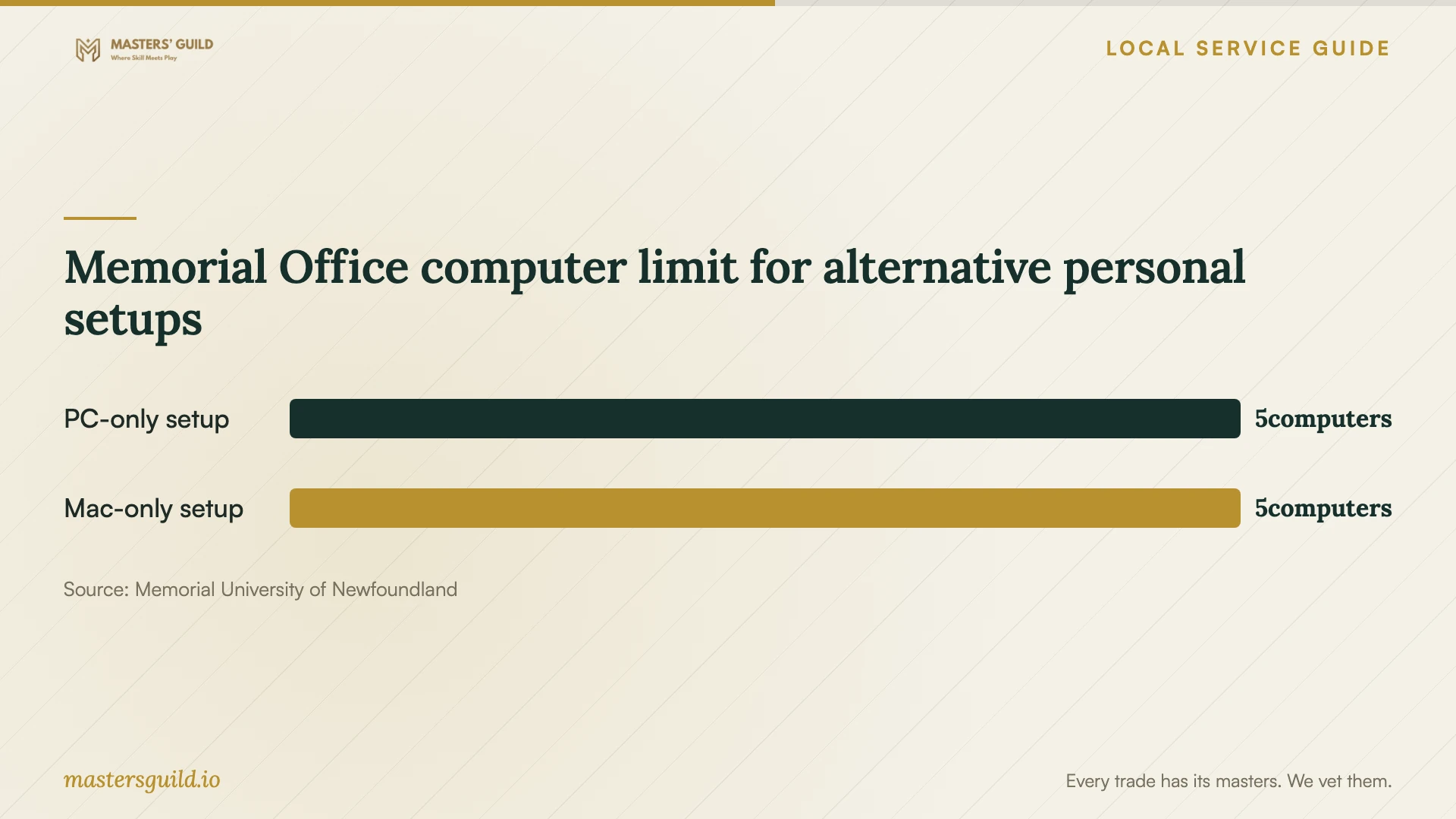
Memorial Office computer limit for alternative personal setups
Local details that affect your job
Check a Memorial entitlement before purchasing Office
Eligible current Memorial students, faculty and staff can install Office for personal use on up to five personally owned PCs or Macs. For a St. John’s household with an eligible user, check the university account and licence assignment before approving a separate Office purchase. Confirm eligibility exclusions and use OCIO’s best-effort support for unresolved university-licence questions. [1]
Arrange provincial library computer access before drop-off
Newfoundland and Labrador Public Libraries documents province-wide public-computer access with a library card and a guest route involving identification and a visitor log. Contact your chosen St. John’s branch before scheduling device downtime. Confirm access for your intended task and ask about personal-device assistance as a separate service. [2]
Choose your next step before booking
| Your situation | Recommended next step | Scope to request |
|---|---|---|
| You have a current Memorial connection | Check personal-device Office eligibility before buying a licence. | Installation and activation with the eligible university account. |
| Office fails to activate with your Memorial account | Contact OCIO to verify licence assignment. | Troubleshooting based on the confirmed account and entitlement. |
| You need files moved | Define the backup and transfer tasks before booking. | Named folders, destination storage and sample-file checks. |
| You need computer access during drop-off | Contact a St. John’s library branch about card or guest access. | Arrange the appointment around access the branch confirms. |
| Your computer also handles small-business work | Involve the business IT contact before approving changes. | Application records, update settings and tested backup preparation. |
Your hiring checklist
- Record the device model, operating system, application names and error messages.
- Confirm the account or licence you intend to use before approving a purchase.
- Request an itemized quote and an approval process for additional work.
- Back up important files and open sample files from the backup.
- Record permitted installations, removals and remote-access arrangements.
- Confirm temporary computer access before arranging drop-off if you need it.
- Test activation, file access and your chosen tasks before accepting completion.
- Collect the invoice, installation record and follow-up terms.
Frequently Asked Questions
How should I budget for installation?
Request a quote for your named applications and device, separating labour, licences, subscriptions, file transfer and visit charges. Agree on the completion tests and approval process for extra work. The supplied sources do not establish local installation prices.
Can I get Office through Memorial?
Memorial offers eligible current students, faculty and staff free Office on up to five personally owned PCs or Macs in total. The benefit covers personal use and includes eligibility exclusions. Confirm your status and university-account access before paying for a separate licence. [1]
Should I give the technician my password?
Plan to enter your password and authentication prompts yourself. For drop-off, discuss the access needed and agree on how the technician will contact you for sign-in or approval. Record how you will end remote access after the appointment.
Can I use a library computer while mine is away?
Provincial library documentation describes public-computer access through a library card or a guest process requiring identification and a visitor log. Contact a St. John’s branch to confirm access and suitability for your task. Ask about help with your own device separately. [2]
Sources and scope
This guide combines the sources below with practical planning guidance. Figures apply to the stated geography and period; request a written quote for your property.