
Local service guide
Cloud Service Setup in San Bernardino, CA
Arrange Cloud Service Setup in San Bernardino by asking a technician to assess your office connection, list the files and devices to migrate, and quote for backup testing and account handover. Before approving the work, agree on who owns the account, how staff will access shared files, and what you can use during an internet or power outage.
Define the job before requesting quotes
Describe the result you need: shared office documents, an automated backup, a move from an existing service, or access across work computers and phones. List the devices, operating systems, users and approximate amount of data. Identify who needs permission to edit, who only needs to read, and which folders contain customer or financial records.
Ask the technician to name the proposed service and explain its backup, recovery and account-administration settings. Request a demonstration of the recovery process before you approve the plan. CISA recommends backing up to a secure external drive or a vetted cloud service and protecting stored data with encryption. [4]
Keep the business account under an owner-controlled email address. Ask the technician to document administrator access, billing responsibility and the process for removing their access after handover. Enter your own passwords during the appointment rather than sending them in the job description.
Check the office connection before scheduling migration
Ask for an upload-speed test at the office and a small trial transfer using the connection that will handle the migration. Have the technician record the test conditions and explain whether staff can keep working during the upload. Agree on a transfer window, a way to pause the work, and who will check completion.
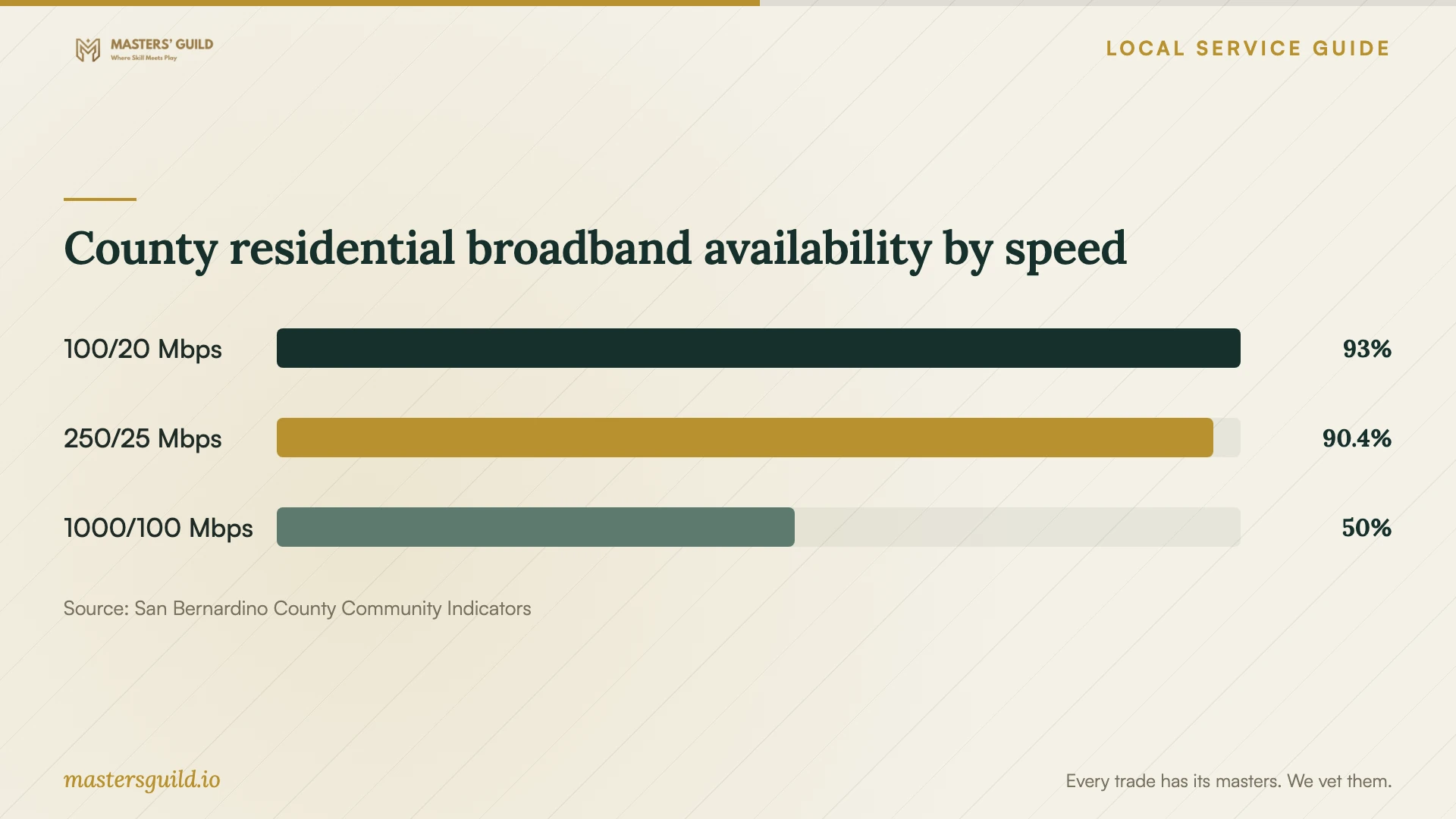
San Bernardino County reports that 93.0% of residential buildings had terrestrial broadband available at 100 Mbps download and 20 Mbps upload or higher in June 2025. Availability fell to 50.0% at 1000 Mbps download and 100 Mbps upload. These county-wide residential figures do not establish service availability or measured speed at your commercial premises. [1]
Use those figures as a reason to check your address, rather than as a migration-time estimate. The CPUC directs readers to an address-search tool in the California Interactive Broadband Map to locate internet providers. Ask a prospective provider to confirm service, upload capacity and installation requirements for your office before purchasing an upgrade. [2]
Specify backup and recovery tests
Write acceptance checks into the quote. Ask the technician to upload a representative folder, open its files from another authorized device, and restore a sample file to a separate location. Include a check of staff permissions and any files you intend to keep available offline. Keep the originals until you review the results.
CISA advises frequent backups and warns that ransomware can reach an external backup drive left connected to a device. If you include an external drive in the plan, ask the technician to explain when to connect it, when to disconnect it and where to store it. [4]
Before changing encryption settings, back up your data and secure the recovery key and password. CISA warns that losing this recovery information can cause permanent data loss. Ask for a handover record that identifies where you keep recovery information without exposing the secret itself. [4]
Plan for power interruptions at the property
Confirm the property's electricity provider. For an SCE-served office, check the address in SCE's outage map and enroll in address-level alerts. SCE explains that a property can lose power because its circuit crosses a high fire-risk area, even when nearby premises retain power. [3]
SCE says PSPS events may last over 24 hours and that some portable power stations can run laptops and routers. Ask the technician to identify which devices you would need to power and to test your proposed backup arrangement. Do not assume that powering the office router will preserve the upstream internet connection. [3]
Choose the documents you need for appointments, orders or invoices during an interruption. Ask the technician to demonstrate access with the network disconnected, then reconnect and check the files. Include instructions for checking an interrupted migration before staff resume editing.
Compare scope and approve a documented handover
Request an itemized quote showing labor, subscription charges, optional equipment and support after the appointment. Ask whether the price includes monitoring the initial transfer through completion, resolving failed files and returning for a recovery test. Set a spending limit for extra work and require your approval before the technician exceeds it.
Ask candidates to describe a migration on your operating systems and proposed cloud service. Request proof of any credentials they claim. At handover, review the selected folders, successful test results, remaining exceptions, billing access and support contact. Approve completion after you can perform the agreed tasks yourself.
County residential broadband availability by speed
Local details that affect your job
Use California's address search before upgrading internet
The CPUC's Carrier Lists page provides the route to the California Interactive Broadband Map's address search. Use your office address when investigating providers, then confirm commercial service with the provider. San Bernardino County's published availability figures cover residential buildings across the county, so they cannot settle the connection question for your office. [1] [2]
Check the SCE circuit before choosing a transfer date
If SCE serves the property, use its outage map and address-level alerts before scheduling the initial migration. SCE says circuit routing can affect premises outside the immediate high fire-risk area and that PSPS events may exceed 24 hours. Ask the technician to include offline access and a recovery procedure for an interrupted transfer. [3]
Choose the scope to request
| Your situation | Requested scope | Acceptance check |
|---|---|---|
| One computer and a defined set of documents | Account setup, selected folders and backup configuration | Open files and restore a sample |
| Several staff members need shared files | User access, folder permissions and owner administration | Test access with each staff role |
| Moving from another storage service | Trial migration, full transfer and exception review | Review missing files before removing originals |
| Office connection has not been assessed | Address-level provider investigation and upload testing | Confirm service with the provider and run a trial transfer |
| SCE-served property needs outage preparation | Address alerts, offline files and transfer-recovery instructions | Demonstrate offline access and review the restart procedure |
Your hiring checklist
- List devices, users, operating systems, source folders and approximate data volume.
- Identify the business owner who will control administration and billing.
- Request an on-site upload test and a representative trial transfer.
- Separate labor, subscriptions, equipment and follow-up support in the quote.
- Agree on staff permissions and folders to keep available offline.
- Back up originals and secure recovery information before encryption changes.
- Witness a sample restore and review failed or skipped files.
- Collect written instructions and remove technician access after handover.
Frequently Asked Questions
How much should I budget for setup?
Get an itemized quote for your office's setup based on your devices, users, data volume and recovery requirements. Ask for separate labor and subscription totals, plus the charge for unresolved transfer work or follow-up visits. Compare quotes using the same scope and agree on a spending limit for extra work.
Can I arrange the work remotely?
Ask whether the technician can complete your agreed tests through a supervised remote session. Choose an on-site appointment if you want help checking equipment, connecting an external backup drive or testing the office's outage arrangement. Include the access method in the quote.
Can I delete the originals after the upload?
Wait until you review the transfer exceptions, open representative files and witness a restore. Agree on a retention period for the originals. CISA recommends frequent backups to a secure external drive or vetted cloud service. [4]
How should I prepare for a power shutoff?
For an SCE-served address, enroll in address-level alerts and check the outage map. SCE warns that PSPS events may exceed 24 hours. Ask the technician to demonstrate offline access to essential files and document how to check an interrupted transfer. [3]
Sources and scope
This guide combines the sources below with practical planning guidance. Figures apply to the stated geography and period; request a written quote for your property.