
Local service guide
Saint Paul software installation: plan your setup
For software installation in Saint Paul, hire a technician to install, activate, configure, and test the programs you choose on your computer. Before booking, agree on the programs, devices, backup responsibilities, and total charges. For help using email or Microsoft Office, consider Saint Paul Public Library Open Labs; the library describes help navigating those tools but does not promise installation on personal computers. [1]
Define the job before requesting a quote
Write down your computer model, operating system version, program names, and the task you want to complete. Tell the technician whether you own the software, need to purchase it, or want help choosing it. Include any error message in your request, but remove account details from screenshots.
Separate installation from related work. Ask whether the technician will handle activation, updates, email settings, printer connections, file transfer, or instruction. For an operating system change, ask them to explain what they plan to preserve, remove, or reinstall before you authorize the work.
Give the technician a concrete completion test. For office software, ask to open and save one of your documents. For email, send and receive a test message. For scanner software, scan a page into the folder you choose. Use a sample file without sensitive information.
Choose remote help or an in-home appointment
Ask a prospective technician whether they can complete your stated task remotely and what access they require. Describe whether the computer starts, connects to the internet, and lets you sign in. If you want help connecting a printer or other equipment, ask whether you must handle cables and buttons during the session.
For an in-home appointment, confirm that the technician serves your address and ask about travel charges. Agree on an arrival window, provide a clear workspace, and keep the equipment you want configured nearby. Request approval before they add work outside the agreed scope.
If home internet access is the obstacle, investigate library hotspot borrowing before booking. The library offers hotspots to eligible city residents. Confirm availability and try the borrowed device with your computer before relying on it for the appointment. [2]
Compare the full quote
Ask each technician to quote the same list of tasks. Request separate amounts for labor, software purchases or subscriptions, travel, backup, and file transfer. Ask whether the total includes applicable tax, whether they charge by the job or by time, and what happens if installation fails.
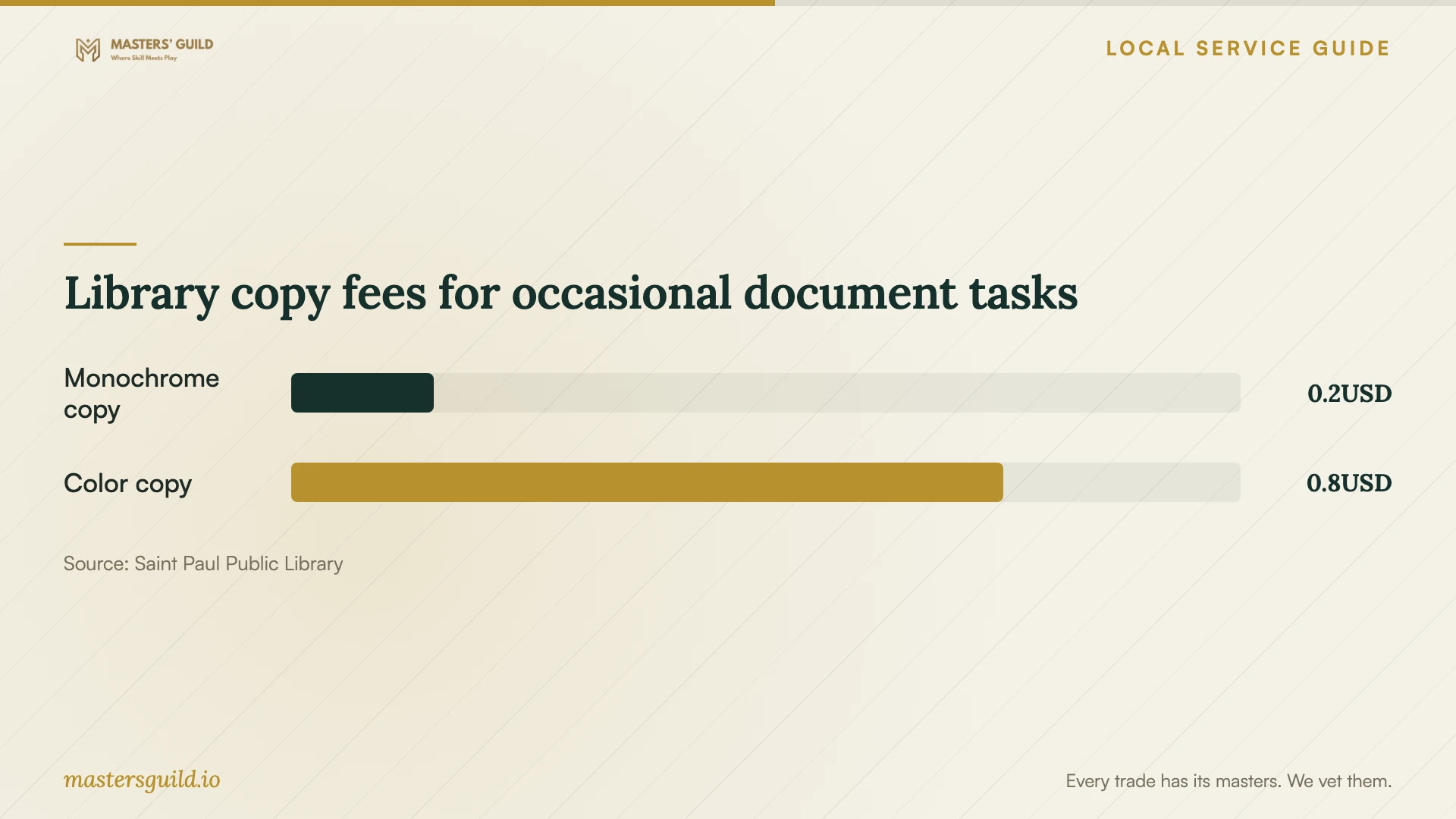
The library fees shown here cover document services. They do not establish a paid software installation rate. Use a written quote for your computer and chosen programs when setting your budget, and ask the technician to identify any work they have excluded. [3]
Keep purchases and subscriptions under an account you control. Ask the technician to explain renewal terms before you approve a purchase and to leave you the receipt. Agree on any follow-up support, including its scope and charge, before the appointment ends.
Prepare your files and account access
Back up the files you want to keep and check that you can open a sample from the backup. If you want the technician to make the backup, include that work in the quote and agree where they will store it. Ask them to stop and discuss the next step before deleting files or resetting the computer.
Have your software purchase information and recovery methods available. Enter passwords and verification codes yourself during the appointment. Ask the technician to explain any remote access program they install, then agree whether they will remove it or disable ongoing access when the session ends.
Library copy fees for occasional document tasks
Local details that affect your job
Use Open Labs for software-use questions
Saint Paul Public Library Open Labs provide help navigating email, Google Drive, and Microsoft Office, along with access to computers, Wi-Fi, and printers. If your program works but you need help using it, check the current Open Labs schedule before paying for an installation appointment. The page does not establish that staff install programs on personal devices; ask about your specific task before visiting. [1]
Arrange a hotspot before remote service
To borrow a library hotspot, you must live in the City of Saint Paul, have a Saint Paul Public Library card, and owe no more than $10 in library fees. You can place a hotspot on hold for pickup at a library location. Lucky Day hotspots cannot be reserved; visit a branch to check availability. Loans last two weeks, allow one hotspot per person, and do not permit renewal. Plan your appointment within the loan period because the library turns off internet service for overdue hotspots. [2]
Consider library scanning for occasional documents
The library lists scanning and faxing at no charge and says printers are available at all locations. Before arranging scanner software installation for an occasional form, consider using that service. For repeated scanning at home, ask a technician to quote your scanner connection and a test scan. The library's published copy charges apply to copies; ask about printing charges before using a printer. [3]
Choose the next step for your task
| Your need | Next step | Confirm before proceeding |
|---|---|---|
| Install and activate programs on your computer | Request a technician quote | Program list, purchase costs, backup scope, and completion test |
| Learn to use email, Google Drive, or Microsoft Office | Check library Open Labs | Current schedule and whether staff can help with your task |
| Arrange internet access for remote help | Check library hotspot eligibility and availability | City residency, library card, fee balance, and two-week loan timing |
| Scan or fax an occasional document | Consider the library's no-charge scanning or faxing | How you will save or send the document |
Your hiring checklist
- List the programs, computer details, and tasks you want completed.
- Confirm whether you need installation, troubleshooting, or instruction.
- Check your backup or include backup work in the quote.
- Keep purchase records, account recovery methods, and your phone available.
- Confirm remote access requirements or in-home travel charges.
- Request a total with software purchases, subscriptions, and applicable tax identified.
- Agree on a completion test and terms for follow-up help.
- Review account access and any remote access software before ending the session.
Frequently Asked Questions
Can the library install software on my laptop?
The Open Labs page describes help navigating technology, including email, Google Drive, and Microsoft Office. It does not promise installation on personal laptops. Ask the library about your task; request a technician quote if you need someone to install and configure programs. [1]
Should I give the technician my password?
Plan to enter your password yourself. Keep your phone available for verification prompts and ask the technician to explain the access they need. Agree on how they will end remote access after the work.
Can I reserve a library hotspot for my appointment?
You can place a regular hotspot on hold for pickup at a library location. Lucky Day hotspots cannot be reserved. Confirm availability before booking, check the eligibility rules, and plan around the two-week loan with no renewals. [2]
What should count as a completed installation?
Agree on the test before work starts. Ask the technician to launch the program, confirm activation if required, and complete your chosen task with a sample file. Request a record of purchases, settings you need to know, and follow-up terms.
Sources and scope
This guide combines the sources below with practical planning guidance. Figures apply to the stated geography and period; request a written quote for your property.