
Local service guide
Software installation in Gatineau, QC
Software installation in Gatineau starts with a written scope: name the applications, devices, accounts and files the technician will handle, then agree on backup, testing and follow-up. For business software involving personal information, involve your privacy lead before the project begins. Québec’s privacy regulator requires a privacy impact assessment for information-system acquisition, development or redesign projects involving personal information. Before hiring, ask where the technician will access your data and where any cloud provider will store it. [2]
Define the job before requesting quotes
Describe the task you need to complete after installation. Examples include sending invoices from a bookkeeping application, taking appointments on a shared calendar or opening existing documents on a replacement computer. Give the technician your device model, operating-system version, application name and number of users. Ask them to confirm compatibility before you buy software or authorize changes.
Separate a basic application install from account setup, email configuration, data migration and an operating-system change. Ask the technician to list the work they include and the conditions that would require another quote. For a migration, name the folders, records and settings you want transferred, plus anything you want left untouched.
Request a written quote for your specific devices, applications and support needs. Ask for amounts in Canadian dollars, with labour, travel, software purchases, recurring subscriptions and applicable taxes identified. For hourly work, agree on a spending limit and require your approval before the technician exceeds it. Ask who will provide support if the application fails after handover.
Choose remote, on-site or migration support
Consider remote work when you can start the computer, connect to the internet and supervise the session. Ask how the technician will obtain your permission, which files they need to access and how you will end the connection. Agree whether they will remove the remote-support application afterward or retain it under a separate support arrangement.
Request on-site help when you want the technician to test the application with your office printer, scanner or other equipment. Include those tests in the quote. For several workstations, ask the technician to configure and test one first, then proceed after you approve the result.
For a replacement computer or business-system migration, arrange a backup and recovery check before changes begin. The Canadian Centre for Cyber Security recommends that small organizations identify essential information and software, protect backups and test recovery. Ask the technician to explain how you will resume work if the installation or migration fails. [4]
Limit access to customer and employee information
Québec’s Commission d’accès à l’information says businesses must collect only necessary personal information. Collection obligations also apply when a service provider performs the collection, and viewing personal information can constitute collection even without retaining it. Before a support session, close unrelated customer records and ask the technician to demonstrate the application with test records where possible. [3]
Keep ownership of the business account and enter your own credentials during setup. Ask for named user accounts and discuss which permissions each employee needs. Record any temporary technician access and agree on its removal. The Cyber Centre recommends distinct strong passwords, multifactor authentication and changing supplier-generated default passwords. [4]
For software that collects personal information through technology, the Québec regulator requires a privacy policy that people can access. It also requires businesses to disclose the possibility of communicating personal information outside Québec when applicable. Ask your privacy lead to review the collection forms, cloud-storage arrangements and public privacy information before you begin using the system with customers. [3]
Test the work before accepting handover
Agree on acceptance tests before the appointment. Sign in with your own account, create a test entry, save it and reopen it. Test the features you requested, such as printing an invoice or exporting a report. For transferred files, open a selection from the agreed folders and confirm that staff can find their working documents.
Ask the technician to explain update settings, security software and backup responsibilities. The Cyber Centre recommends automatic operating-system and application updates, updated security tools and tested backups. For business applications, agree on who will check updates and how you will schedule work that requires a restart. [4]
Request a handover record listing installed applications, account ownership, subscription renewal responsibilities and the support contact. Keep recovery information under your control. Before the technician leaves or disconnects, ask them to show you how to repeat the main task without their help.
Use the national chart as a handover prompt
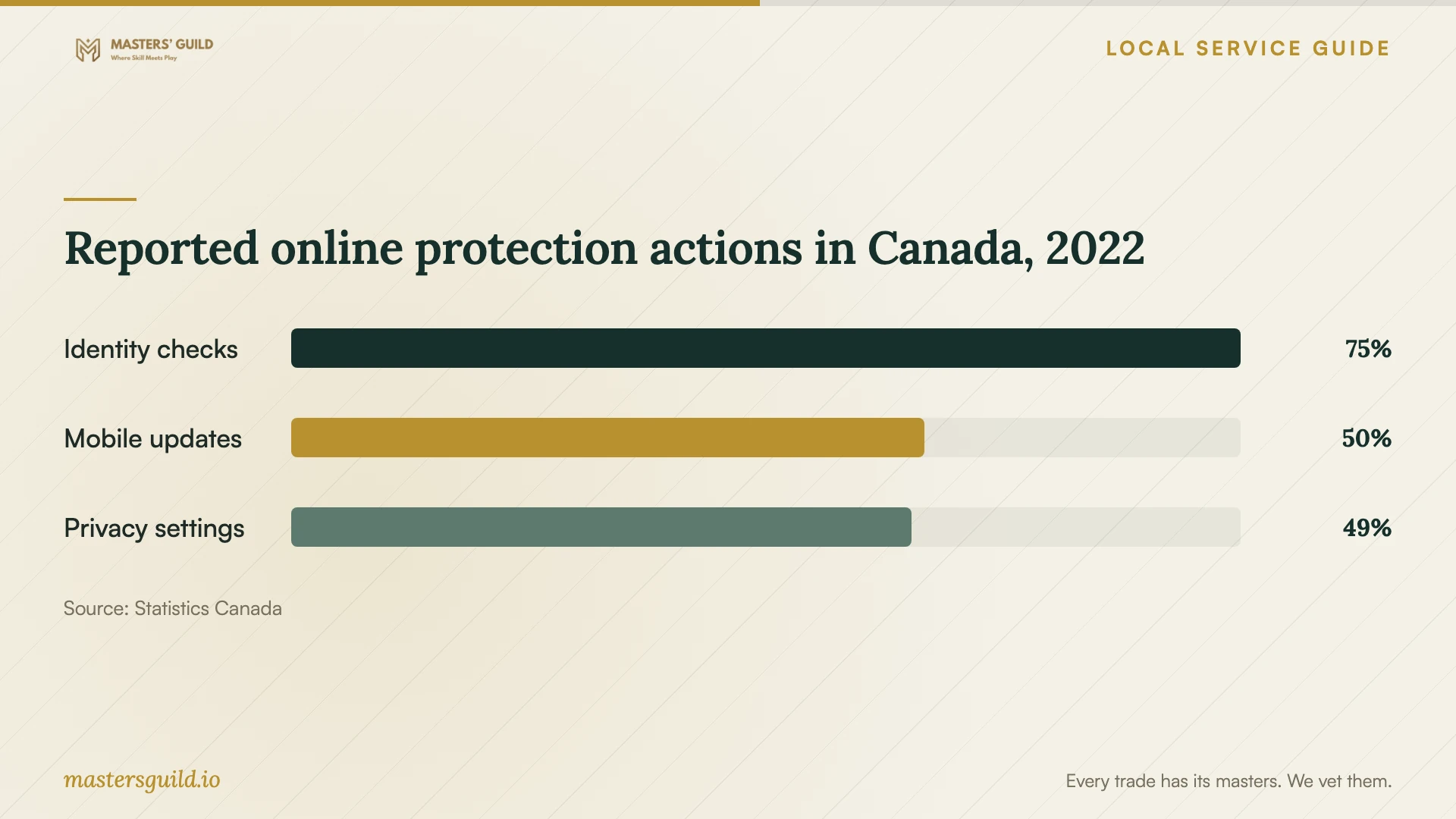
Statistics Canada’s 2022 survey reported that 75% of recent internet users activated optional identity-verification security features, 50% updated their mobile operating system and 49% changed account or application privacy settings. These national figures describe reported behaviour among people aged 15 and older in the ten provinces. They do not measure local technicians or business installation quality. [5]
Use the chart to prompt three handover discussions: account security, update settings and privacy controls. Ask the technician to demonstrate the settings relevant to your applications. Judge the completed work against your agreed tests rather than the survey percentages.
Reported online protection actions in Canada, 2022
Local details that affect your job
Review Ottawa-based access before work begins
For a Gatineau business, hiring across the provincial border calls for a data-access discussion. Québec’s regulator requires a privacy impact assessment before communicating personal information to an entity outside Québec or entrusting an outside person or organization with collecting, using, communicating or retaining it on your behalf. Ask an Ottawa-based technician where they will work, what records they will access and whether they will copy files. Have your privacy lead review the arrangement before granting access. [2]
Bring Québec privacy review into software selection
For an acquisition, development or redesign project involving personal information, Québec’s regulator requires a privacy impact assessment and consultation with the business’s privacy lead from the start. Apply that step when planning a customer-management, booking or payroll system. Ask the installer for the proposed data flows and hosting arrangements before approving the project. Keep the privacy review separate from the technician’s installation checklist. [2]
Use Gatineau library help for library-resource problems
If your problem concerns library digital resources or using an e-reader, check the municipal library’s help options before requesting a business IT visit. The library provides resource access with an Accès Gatineau card number and PIN, offers technical support for login or resource-access difficulties and recommends appointments for help using tablets, e-readers or other devices. Ask the library about that specific problem; arrange office-software installation and business-system support with a technician whose quote covers those tasks. [1]
Choose the support scope to request
| Your situation | Scope to request | Before approving |
|---|---|---|
| One application on a working computer | Installation, account setup and a supervised test | Confirm compatibility, licence ownership and remote-session access |
| Software used with office equipment | On-site configuration and equipment testing | Name the printer, scanner or other equipment in the quote |
| Replacement computer or data migration | Backup, transfer and recovery testing | Agree on included folders, acceptance tests and a recovery plan |
| New system involving personal information | Installation coordinated with your privacy lead | Complete the Québec privacy impact assessment required for the acquisition project |
| Personal-information handling outside Québec | Defined provider access and data-handling arrangements | Complete the required privacy impact assessment before the outside handling begins |
Your hiring checklist
- List each device, application, user and task you want the technician to configure.
- Ask the technician to confirm compatibility and separate installation from migration or repair work.
- Obtain a written quote with a spending limit and approval process for extra work.
- Arrange a backup and confirm how you will recover files before authorizing changes.
- For customer-data software, ask your privacy lead to review access and hosting arrangements.
- Keep business account ownership and agree on removal of temporary technician access.
- Run the agreed acceptance tests and collect a written handover record.
Frequently Asked Questions
Can I arrange the installation remotely?
Ask for a remote appointment if you can connect, supervise access and run the acceptance tests. Explain any equipment the technician must test. Agree on the remote-support tool, session permissions and whether the technician will remove access afterward.
Does hiring someone in Ottawa change the preparation?
Review whether the arrangement involves communicating personal information outside Québec or entrusting its handling to someone outside the province. Québec’s regulator requires a privacy impact assessment before those activities. Ask where the technician will work and what information they will access. [2]
Should I send the technician my password?
Arrange to enter credentials yourself and keep account recovery under your control. Ask whether the technician can use temporary access for the work, then remove it after testing. Include multifactor authentication in setup; the Cyber Centre recommends it alongside distinct strong passwords. [4]
What should I check before paying for completed work?
Run the tasks you agreed on: sign in, save and reopen a test record, check transferred files and test connected equipment. Ask for the application list, subscription responsibilities and support contact. Confirm who will maintain updates and backups.
Sources and scope
This guide combines the sources below with practical planning guidance. Figures apply to the stated geography and period; request a written quote for your property.