
Local service guide
Software Installation in Fredericton: Plan Your Setup
Arrange Software Installation in Fredericton by listing your programs, devices and intended tasks, then requesting a written quote that separates labour, software purchases and file transfer. Check university entitlements before buying licences: UNB offers Microsoft 365 at no charge to students, faculty and staff through MyUNB and directs installation problems to ITS. Agree on backup responsibilities and acceptance tests before work begins. [1]
Define the work before comparing quotes
Describe the result you want: edit a document, check email, join a class meeting or use a particular application. Give the technician your computer model, operating system and application names. Include any error message and explain whether you want to preserve an existing installation or replace it.
Ask for a scope covering installation, updates, activation, account sign-in and testing. Include file transfer, printer setup or removal of an old application when you need those tasks. Before an operating-system replacement, ask which files and settings the technician will preserve and who will verify the backup.
Request a total for the agreed work and a process for approving extra charges. Ask whether the quote includes software purchases, subscriptions, travel and follow-up help. Compare offers against the same task list. For remote service, explain whether you can reach the desktop and sign in; ask the technician whether they can complete your particular job remotely.
Check software access before purchasing
UNB Libraries says students, faculty and staff can obtain the latest updated Microsoft Office or Microsoft 365 through MyUNB at no charge. It directs installation and update issues to ITS. If you qualify, check university access and support before paying for a separate licence or private installation help. [1]
UNB offers a separate route for students enrolled in Faculty of Computer Science degree or certificate programs, including BSSWE. Through Azure Dev Tools for Teaching, eligible students can obtain licensed copies of products including Windows, Visual Studio and SQL Server at no charge. The faculty says eligible enrolled students receive an account and use their UNB account to sign in. Confirm eligibility and the terms for your intended use before authorizing a purchase. [3]
Prepare authentication and account access
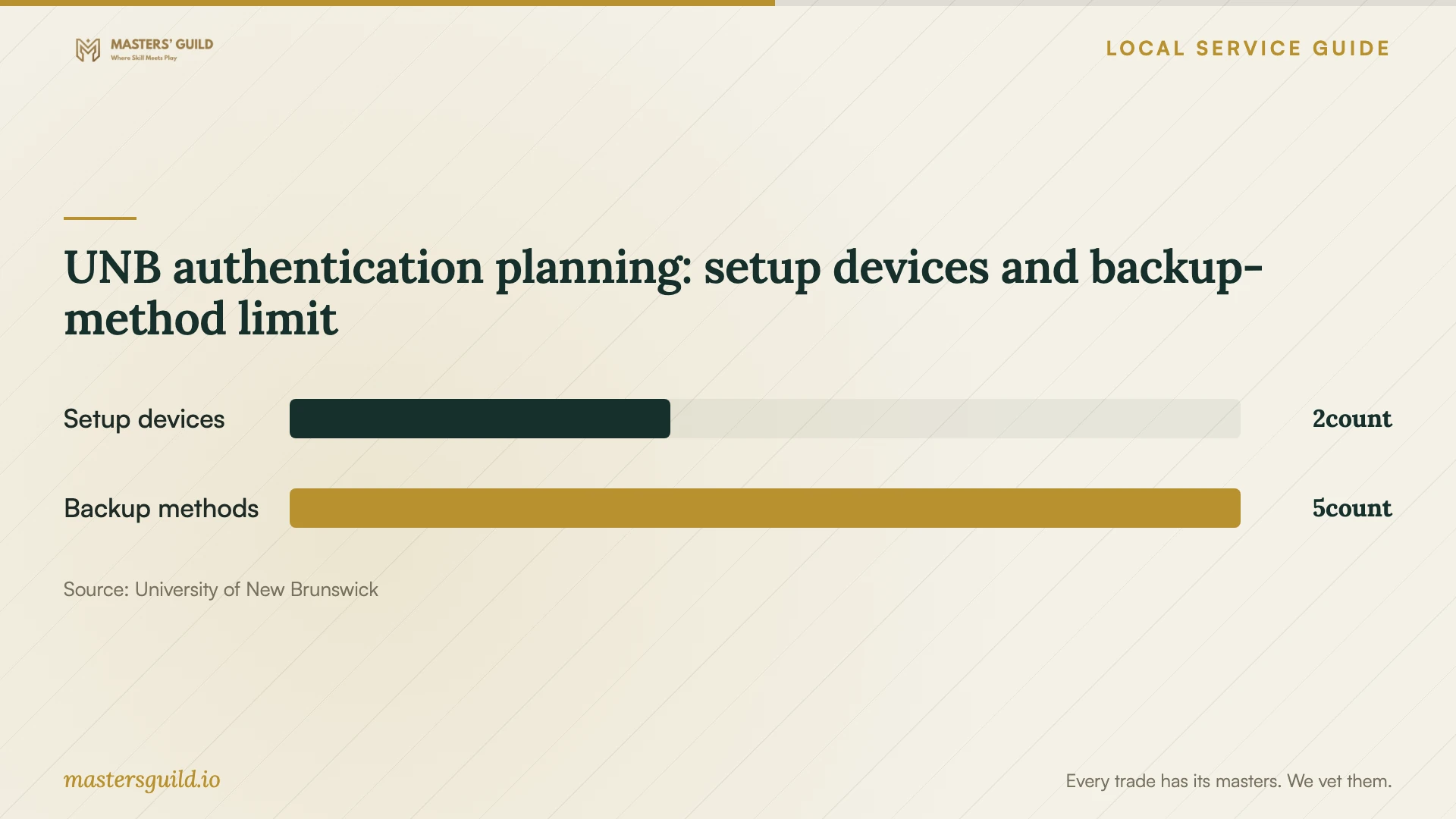
Include authentication in the plan for UNB email, Teams, OneDrive and MyUNB setup. UNB requires multi-factor authentication and recommends Microsoft Authenticator. Its guidance asks users to select a verification method other than SMS because Microsoft is removing that option. [2]
If you are replacing a phone alongside your computer, UNB tells users to set up MFA on the new device before getting rid of the old one. It also recommends adding a backup method. Contact the IT Service Desk if you cannot access the old device or use a backup method, then arrange installation work that depends on signing in. [2]
Keep your authentication device with you and enter your own password. Ask the technician to explain each sign-in request before you approve it. During remote work, stay present, agree on when the session ends and ask the technician to remove any remote-access application you do not want to retain.
Confirm school requirements before configuring a laptop
New Brunswick permits Grades 9–12 students to use personal tablets or laptops through BYOD when teachers authorize educational use. For Kindergarten to Grade 8, the provincial guidance describes school-provided devices connected to the school network. Ask the school which device and applications your child should use before commissioning setup. [4]
The province requires classroom software and digital content to support educational purposes and curriculum outcomes. It also says identified social media sites will be blocked on school networks and school devices. Give the technician the school's application requirements and take school-network access questions to the school. [4]
Test the agreed tasks before accepting the work
Ask the technician to restart the computer, open each agreed application and demonstrate the tasks in your quote. Open and save a sample document yourself. If the job includes email or file transfer, check the accounts and folders you expected to use. Confirm where you should save future files.
Request a handover listing the installed applications, the account that owns each licence, recurring subscriptions and unresolved issues. Agree on what follow-up support covers and how to report a problem. Keep purchase records and confirm that you can sign in without the technician's account or assistance.
UNB authentication planning: setup devices and backup-method limit
Local details that affect your job
UNB eligibility can change the purchase list
Households connected to UNB should check MyUNB before buying Microsoft 365. Students, faculty and staff receive access at no charge, with installation and update questions directed to ITS. Eligible Computer Science students have a separate program that includes Windows, Visual Studio and SQL Server. Identify the applicable entitlement before approving licence charges. [1] [3]
Keep the old phone during a UNB device change
UNB instructs users to set up authentication on a replacement phone before retiring the old one. If you cannot access the old device or a backup method, contact the IT Service Desk. For a household changing both phone and computer, resolve this before an appointment that requires UNB account access. [2]
Provincial school rules affect personal laptop plans
New Brunswick's Grades 9–12 BYOD provision allows teacher-authorized educational tablet and laptop use. The guidance describes school-provided learning devices for Kindergarten to Grade 8. Confirm classroom requirements before paying to configure a personal computer for school use. [4]
Choose the next step for your setup
| Your situation | Next step | Scope to discuss |
|---|---|---|
| UNB student, faculty or staff needing Microsoft 365 | Check MyUNB access and ITS installation support. | Request private help for the tasks you still need. |
| Eligible UNB Computer Science student needing development software | Check Azure Dev Tools for Teaching access. | Confirm eligibility, the required product and intended use before buying. |
| UNB computer setup alongside a replacement phone | Set up MFA on the new phone before retiring the old one. | Include sign-in testing and a backup authentication method. |
| Grades 9–12 personal laptop for school | Ask the teacher which educational BYOD use they authorize. | Provide the approved application list and agree on tests. |
| Home computer needing several applications | Prepare a task list and request an itemized quote. | Agree on backups, activation, file transfer and acceptance tests. |
Your hiring checklist
- List device models, application names and the tasks you want to complete.
- Ask the school or university about required applications and software entitlements.
- Confirm access to your software account and authentication device.
- Agree on a backup plan before approving replacement or removal work.
- Request an itemized quote and a process for approving extra charges.
- Plan to enter passwords yourself and remain present during remote access.
- Test the agreed tasks after a restart and request a written handover.
Frequently Asked Questions
Do I need to buy Microsoft 365 for a UNB student?
UNB offers Microsoft 365 at no charge to students, faculty and staff through MyUNB. Check the student's access before buying a separate licence. UNB directs installation and update issues to ITS. [1]
Can I arrange UNB setup if I no longer have my old phone?
UNB says to contact the IT Service Desk if you cannot access your old device or use a backup MFA method. Resolve account access before arranging installation work that requires signing in. [2]
Can my child use a personal laptop at school?
For Grades 9–12, New Brunswick permits BYOD tablets and laptops for educational purposes when teachers authorize their use. Ask the teacher about your child's requirements before paying for classroom software setup. [4]
What should the installation quote include?
Ask for separate amounts for labour, software purchases, subscriptions and file transfer. Have the technician list the agreed tasks, acceptance tests and how you will approve additional work. Ask what follow-up help the quoted price includes.
Sources and scope
This guide combines the sources below with practical planning guidance. Figures apply to the stated geography and period; request a written quote for your property.