
Local service guide
Software Installation in Fort Wayne, IN
Arrange Software Installation in Fort Wayne by requesting a written quote that names your device, applications, backup responsibilities, and completion tests. Consider remote help if you can start the computer and supervise access; request an in-person assessment if you cannot sign in. Before approving a reinstall, agree on the files and settings the technician must preserve.
Define the result you need
Describe the task you want to complete: opening a document, sending email, editing photos, printing, or setting up a new computer. Give the technician your device model, operating-system version, application names, and error messages. Ask them to check compatibility before you buy software or authorize changes.
For a new computer, specify whether you want updates, account sign-in, printer setup, application settings, and files from your old device. For an existing computer, identify what works and which programs the technician may remove. Name account recovery or malware investigation as separate tasks if you want those included.
Choose how the technician will work
Consider remote installation if you can open the support session and stay present. Ask how the technician will handle restarts and how you can end access. For a visit or drop-off, agree on the equipment to bring, collection arrangements, and whether the technician needs your charger or old computer.
Indiana DHS warns about pop-ups or calls that claim a device has a virus and request remote access or payment. Its statewide guidance advises verifying identity, avoiding downloads from unknown sources, and watching for pressure to pay with gift cards, wire transfers, or cryptocurrency. Use contact details you have checked to arrange help. [3]
Set the price and protect your files
Ask for separate charges for labor, licenses, subscriptions, backup work, and file transfer. Confirm whether the technician charges by the job or by time, what requires further approval, and what follow-up help the price includes. Ask them to contact you before exceeding your agreed limit.
Copy important files before work starts and open a selection from the backup to check them. Include photo folders, local email archives, bookmarks, and application data you want to keep. Have the technician explain whether the proposed installation keeps or erases existing files, then agree on who will restore and test them.
Enter passwords yourself during a supervised session where practical. Require approval before purchases, account changes, or deletion. Indiana DHS recommends strong, unique passwords and multi-factor authentication where available; ask the technician to review those settings with you. [3]
Use local alternatives before paying for installation
For an unfamiliar creative application, consider exploring it on library equipment before choosing your home setup. ACPL lists Adobe Creative Cloud, Blender, and DaVinci Resolve at the Main Studio. The library describes equipment access as first-come, first-served and requires a library card for in-house circulating laptops. Call to confirm current access and the application you want. [1]
For a printing-only need, consider ACPL's browser-based Wi-Fi printing before arranging a printer-driver installation. The library says this service requires a device connected to its network and a web browser. It publishes a printing charge of 10 cents per side. Confirm the service before making a trip. [2]
Test the result before handover
Ask the technician to demonstrate the task you specified. Open and save a document, send a test email, export an image, or print a page as appropriate. Restart the computer and repeat the essential test. Check that you control the account used for activation and understand any subscription commitment before approving a purchase.
Request a handover note naming the installed programs, unresolved problems, backup location, and follow-up arrangements. Review remote access with the technician and remove access you no longer want. Keep your invoice and software purchase records together.
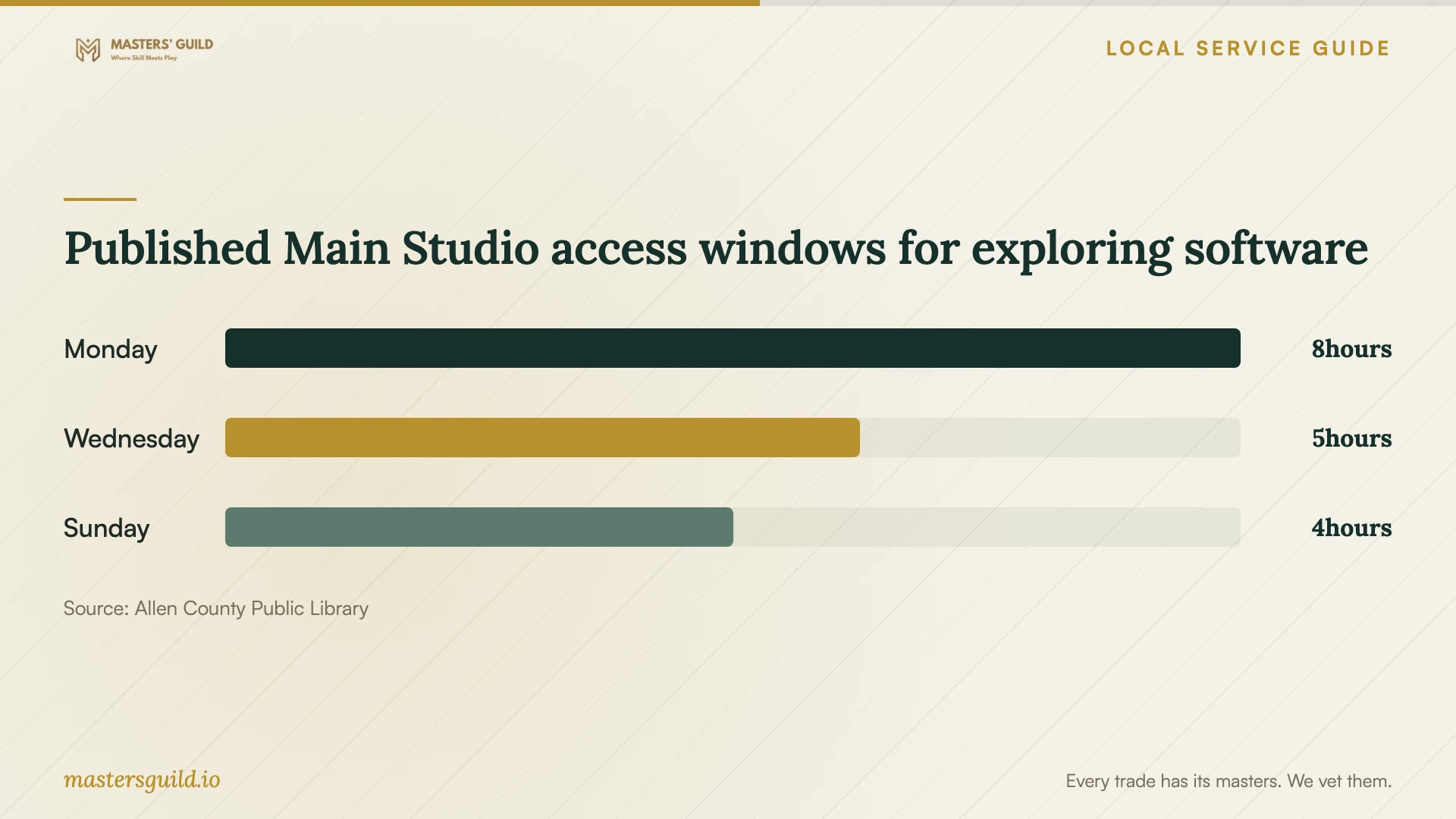
Published Main Studio access windows for exploring software
Local details that affect your job
Prepare for a Main Studio software visit
ACPL lists its Main Studio at 900 Library Plaza and publishes Adobe Creative Cloud, Blender, and DaVinci Resolve among its software. Machines are first-come, first-served; bring a library card if you need an in-house circulating laptop. The library offers introductory programs covering basic machine and software operation, with some staff support upon request during open hours. Call 260-421-1245 to confirm the application, equipment, and current hours. ACPL says dates and times may change. Confirm home license requirements with the software seller before commissioning installation. [1]
Reserve computer access during a drop-off
ACPL publishes public-computer access at Main and its thirteen branches, including internet and Microsoft Office products. Its reservation policy allows one-hour sessions four times per day with a valid library card or guest pass; extensions depend on pending appointments. Call your branch to confirm a suitable session before leaving your own device for service, and ask about the application you need. [2]
Print without adding a driver
ACPL describes browser-based Wi-Fi printing without printer-driver installation. Connect your device to ACPL_WiFi and use a web browser; the service requires connection to the library network. The library publishes printing at 10 cents per side. Consider this option for an immediate document-printing need, and confirm availability before visiting. [2]
Choose your next step
| Your situation | Suggested next step | Confirm before proceeding |
|---|---|---|
| You can sign in and connect to the internet | Consider a supervised remote installation | Technician identity, restart arrangements, and completion tests |
| You cannot sign in or start the computer | Request an assessment | Diagnosis scope and approval before file deletion |
| You are choosing creative software | Consider exploring an application at ACPL's Main Studio | Application availability, first-come equipment access, a library card for circulating laptops, and home licensing |
| You need a computer during service | Ask your ACPL branch about a public-computer reservation | Library card or guest pass, session time, and the application you need |
| You need to print a document | Consider ACPL browser-based Wi-Fi printing | Connection to ACPL_WiFi, a web browser, and the printing charge |
Your hiring checklist
- List your device model, operating-system version, applications, and error messages.
- Describe the task the technician must demonstrate at handover.
- Confirm compatibility and who will purchase software before buying.
- Back up important files and check that you can open the copies.
- Separate labor, licenses, subscriptions, backup, and transfer charges.
- Agree on supervised access, restarts, and approval for extra work.
- Arrange temporary computer access before dropping off your device.
- Restart, test your tasks, and review remote access before closing the job.
Frequently Asked Questions
How much should I budget for installation?
Ask the technician for a quote for your device and task list. Request separate labor and software charges, an approval limit for extra work, and prices for any backup or file transfer. Confirm whether follow-up support costs extra.
Can I use the library's software on my home computer?
ACPL lists software for its Studio equipment. Consider that access when exploring an application, then confirm home installation and licensing with the seller. Bring a library card for an in-house circulating laptop, and check availability because equipment access is first-come, first-served. [1]
Should I grant remote access after a virus warning?
Verify the support provider before granting access. Indiana DHS identifies pop-ups or calls claiming a virus and requesting remote access or payment as a tech-support scam pattern. Arrange help through contact details you have checked. [3]
What should I test before the technician finishes?
Test the task you hired them to enable, restart, and repeat it. Check saved files, account access, activation, and any printer or email setup included in the quote. Record unfinished items and agree on follow-up arrangements.
Sources and scope
This guide combines the sources below with practical planning guidance. Figures apply to the stated geography and period; request a written quote for your property.