
Local service guide
Software Installation in Colorado Springs, CO
For Software Installation in Colorado Springs, choose a technician who will confirm your requested programs, explain the changes, and test your everyday tasks before finishing. Compare written quotes for the same scope, including activation, file transfer, and any repair work. Agree on how you will approve extra charges and enter your own account credentials.
Describe the result you want
Tell the technician your computer model, operating system, and the names of the programs you want. Include any error message and explain whether you have purchased the software. Ask them to confirm the version and compatibility before you authorize a purchase. Distinguish installing an application from changing the operating system or setting up a replacement computer.
Choose a completion test that matches your use. For a document editor, ask to open, edit, save, and reopen a sample file. For email, use your account to send and receive a message. Include your printer if you need paper copies. Describe any existing files or accessories you expect the new setup to support.
Choose where the technician will work
Ask whether the technician can handle your job remotely, at home, or through drop-off service. Tell them whether the computer starts, connects to the Internet, and lets you sign in. For remote work, agree on an appointment time and ask how they will end access and remove any access software after the session.
Consider a home appointment if you want someone to test the software with your printer or other equipment. Before dropping off a computer, confirm which accessories to bring, how you will participate in account activation, and when you can collect it. Ask the technician to contact you before expanding the job beyond the agreed work.
Protect files and control account access
Make a backup of the files you want to keep and open a few files from that backup to check it. Identify folders the technician should preserve or transfer. Require your approval before a drive erase, operating-system reinstall, or removal of an existing application. Ask for an explanation of the proposed change before agreeing.
Prepare purchase confirmations and check that you can access your recovery email or phone. Enter passwords and verification codes yourself during the appointment. If the technician requests administrator access, ask what task requires it. Have them record the installed program names and versions, and confirm any subscription charge before accepting it.
Compare charges and finish with a working setup
Request separate amounts for labor, software purchases, subscriptions, backup or transfer work, travel, and tax. Confirm whether the technician charges a fixed price or bills for time. Set a spending limit and ask what happens if activation fails or they discover another problem. Compare offers against the same program list and completion tests.
Run the agreed tests before accepting completion. Ask the technician to explain any remaining error and identify unfinished work on the invoice. Confirm how to request follow-up help and whether it costs extra. Keep the invoice and purchase records with a short description of the changes so you can explain your setup at a later appointment.
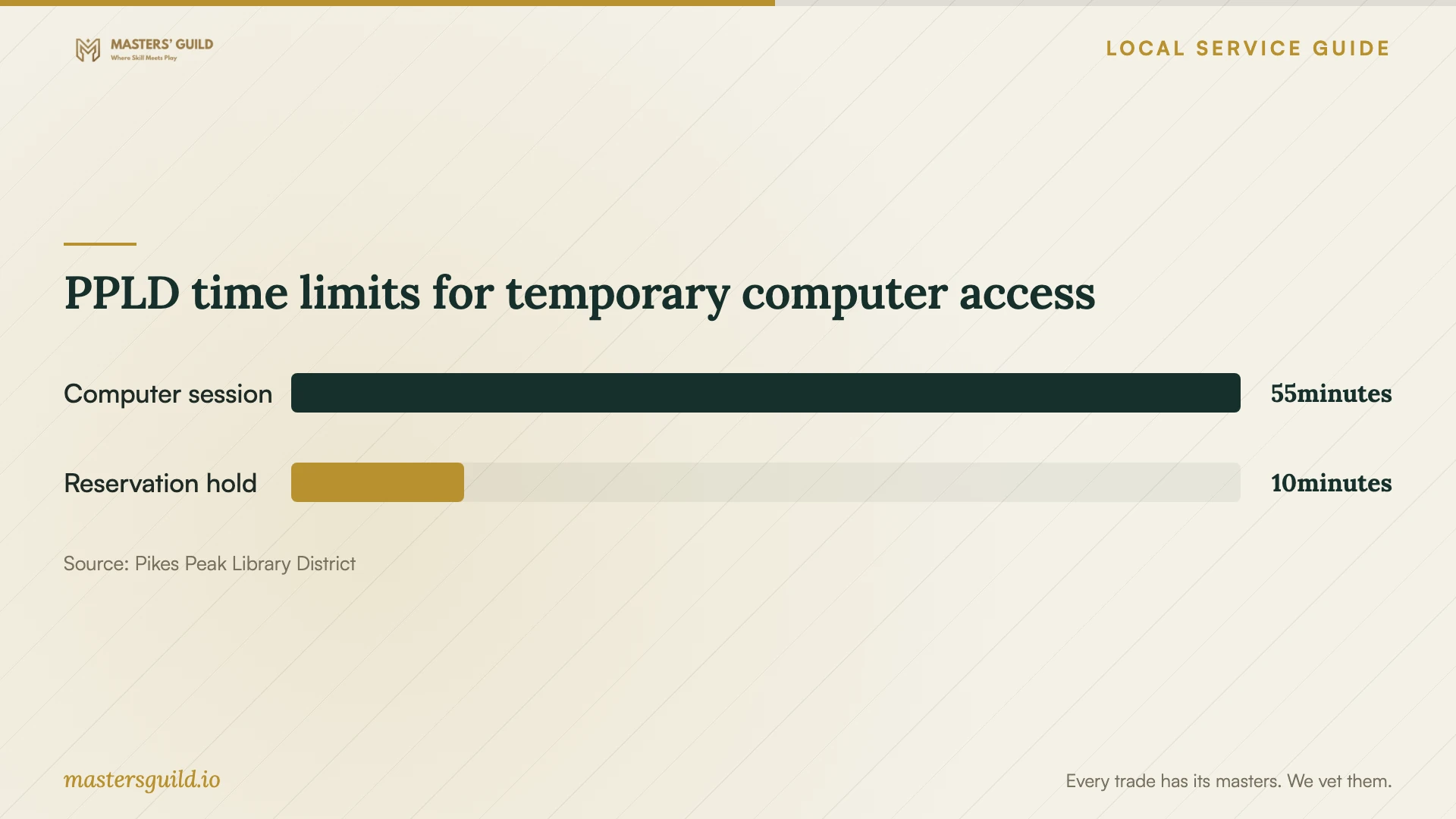
PPLD time limits for temporary computer access
Local details that affect your job
Separate library catalog help from installation
Pikes Peak Library District directs patrons who need catalog navigation help to Ask a Librarian, Book a Librarian, or Device Drop-In Hours. Drop-in attendance requires no registration; bring your device and power cord. Staff cannot install software, remove viruses, or set up computers. If your difficulty concerns using the catalog, consider this assistance before arranging paid work on your computer. [1]
Arrange temporary computer access before leaving home
PPLD provides free Internet, Microsoft Office, and database access at all its locations. Reserve a computer in advance by calling (719) 531-6333, option 3, using your own library card. The district allows one reservation per day. It resets computers after each session and removes saved work, so bring your own storage device and save documents there before leaving. Use the reservation limits below to plan a short task during computer downtime. [2]
Request a separate repair breakdown
For electronic-equipment repair, the City of Colorado Springs says sellers may charge tax on parts only when the invoice separates parts and labor; otherwise, it describes the entire invoice as taxable. If your appointment includes repair, request that breakdown. This guidance concerns equipment repair, so ask the seller to explain the treatment of software and installation charges. For a city tax question, the Sales Tax Office lists (719) 385-5903. [3]
Match the appointment to your situation
| Situation | Arrange | Question to settle |
|---|---|---|
| One application on a working computer | Ask about remote installation | Can you complete activation and demonstrate my requested task? |
| Software must work with equipment at home | Ask about an in-home appointment | Will you test the printer or accessory as part of the quote? |
| Replacement computer with files to move | Include setup and transfer in the scope | Which files and existing programs will you preserve? |
| Computer needs repair before installation | Request separate repair and installation charges | What requires approval before you proceed? |
Your hiring checklist
- Photograph error messages and note when they appear.
- Identify a sample file or task for the final demonstration.
- Check your backup and account-recovery access.
- Keep purchase confirmations available without sending passwords.
- Confirm appointment location, accessories, and pickup arrangements.
- Set an approval limit for additional work.
- Keep the final invoice and a record of installed programs.
Frequently Asked Questions
Should I buy the software before the appointment?
Ask the technician to confirm the required product, version, and account first. If you already purchased it, prepare the receipt and sign-in access. Approve any replacement purchase or subscription before the technician proceeds.
How should I handle a request for my password?
Arrange to enter it yourself while the technician works. Ask them to explain any access they need and agree on how they will disconnect after remote service. Keep recovery details under your control.
What if the program installs but I still cannot use it?
Ask the technician to demonstrate the task you agreed on before accepting completion. Record the unresolved problem and any proposed extra work. Settle the charge and follow-up terms before extending the appointment.
How can I compare a fixed quote with an hourly offer?
Give both technicians the same scope. For the hourly offer, request an expected total and an approval limit. Ask each technician which purchases, transfers, travel charges, and follow-up work they include.
Sources and scope
This guide combines the sources below with practical planning guidance. Figures apply to the stated geography and period; request a written quote for your property.