
Local service guide
Computer Virus Removal in Cleveland, OH
Arrange Computer Virus Removal in Cleveland by choosing a technician through contact information you trust and requesting a diagnosis, itemized price, and return estimate. Explain your symptoms and identify files you need to keep before agreeing to work. If a security warning supplies a phone number, follow FTC guidance and avoid that number. [3]
Separate a security warning from a diagnosis
The FTC describes scams that start with fake Microsoft or Apple security alerts and a number to call. Scammers then claim someone hacked your accounts and demand money. The FTC advises you to hang up and verify the company or agency using a phone number or website you know is real. [3]
Write down the warning, what you clicked, and whether you spoke with anyone. Include payments, downloads, shared passwords, and remote sessions. Tell the technician about those actions when arranging the appointment. Describe browser changes, repeated warnings, or difficulty opening files without assuming a particular virus caused them.
If a caller tells you to move money to protect it, end the call. The FTC warns against transferring or sending money in response to unexpected calls or messages. For an incident involving your bank, contact the bank through a method you trust and explain what happened. [3]
Set the scope and data boundaries
Ask the technician to distinguish diagnosis, malware cleanup, operating-system repair, and reinstalling software in the proposed scope. Request an explanation of why they recommend each step. If they suggest replacement, ask them to compare the proposed repair with the work needed to move your files and set up another computer.
Identify essential files, including photos, tax records, and documents outside your usual folders. Describe your backup and whether you have checked that you can open its contents. Ask how the technician will assess files before copying them and whether they will store copies on their own equipment.
Agree on who may access your data, how long the technician will retain copies, and how they will delete them. Require your permission before file erasure, drive replacement, an operating-system reinstall, or a paid subscription. Keep financial account credentials out of a general repair handoff; handle account recovery with the account provider.
Compare costs and arrange the appointment
Request current prices and turnaround estimates from the providers you contact. Ask for separate charges for diagnosis, cleanup, file work, software, travel, and follow-up. Confirm whether the total includes tax and whether you owe a diagnostic fee if you decline further work.
Set a spending limit and ask for an updated quote before extra work. Compare offers against the same scope so you can see which tasks each provider includes. Ask how the provider handles a return of the original symptoms and whether follow-up work carries another charge.
Describe whether the computer starts and whether you can use the internet when discussing remote service, drop-off, or a home visit. Agree on an update time and a return target tied to your needs. Ask what happens if the technician needs a different service method after diagnosis. For drop-off, confirm whether to bring the charger or other accessories.
Check the result and plan the next step
At handover, try the tasks that prompted the repair and open a selection of the files you asked to keep. Request a written account of the findings, changes, installed software, and unresolved concerns. If you authorized remote access, ask the technician to explain how they ended it and identify any access software that remains.
For help practicing safe browsing or using email after repair, consider a Cuyahoga County Public Library Digital Navigator appointment. The library lists instruction in basic computer skills and technology tasks. Treat that regional program as learning support; its published examples do not establish a malware-removal service. [2]
If you retire the computer, ask the technician to finish the agreed data preparation before disposal. Cuyahoga County Solid Waste District directs residents to special electronics recycling options and says computers and electronics do not belong in curbside recycling carts or bins. [1]
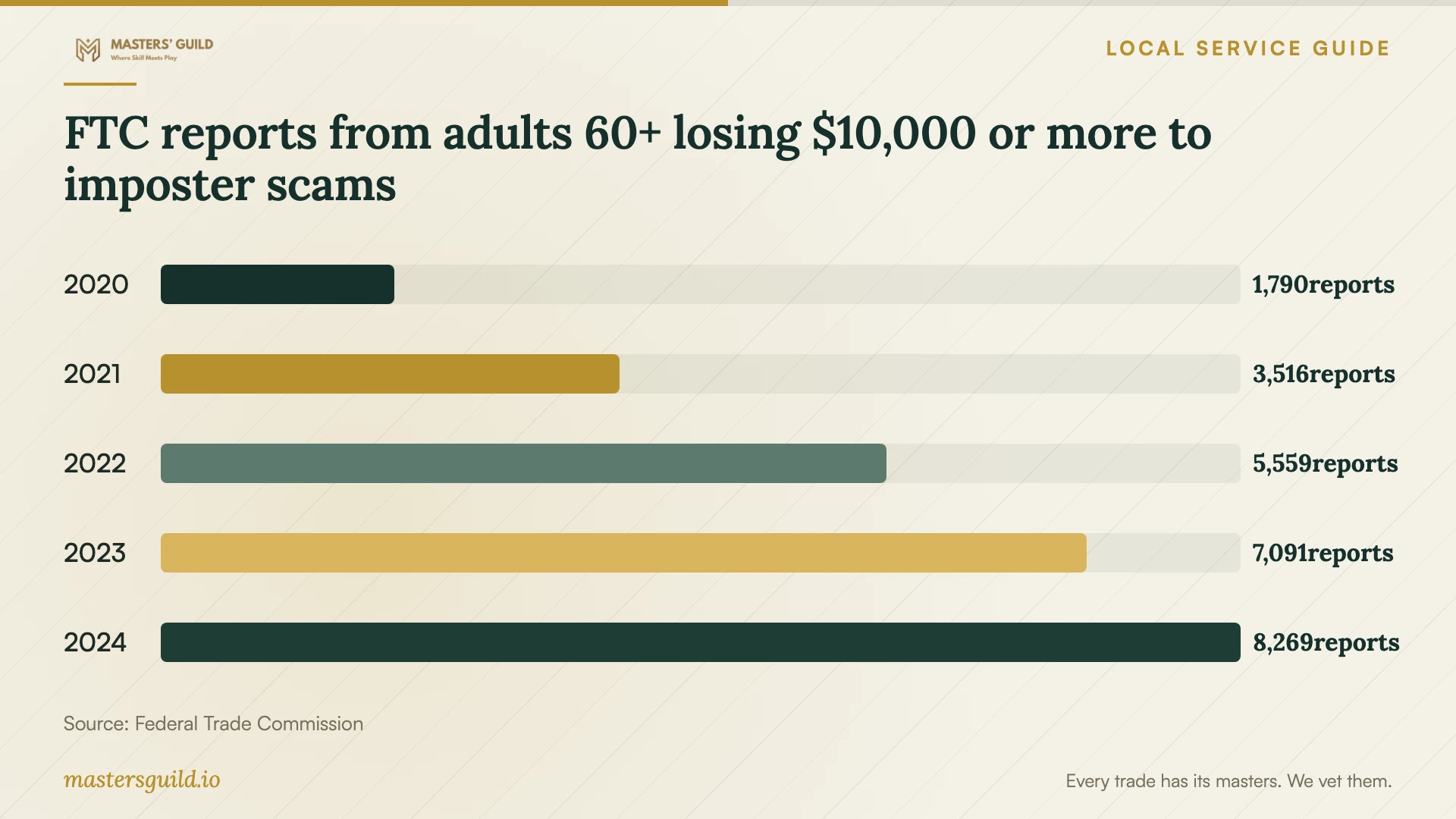
FTC reports from adults 60+ losing $10,000 or more to imposter scams
Local details that affect your job
Book regional follow-up instruction
Cuyahoga County Public Library accepts Digital Navigator appointment requests at 216.749.9420, in person at a branch, or through its contact form. Its branch choices include MetroHealth, Garfield Heights, and Parma-Snow. Choose a convenient location and confirm your appointment before traveling. Ask for instruction in the task you want to practice, such as safe browsing, email, or app use, rather than booking on the assumption that staff will clean an infected device. [2]
Plan a weekday computer-recycling trip
Cleveland's year-round computer-equipment drop-off operates at the Division of Waste Collection garage, 5600 Carnegie Avenue, Monday through Friday from 9:00 AM to 3:00 PM. The program accepts no TVs. Confirm hours before traveling. The district says most communities accept waste only from their residents, so ask about eligibility if you live outside Cleveland. Arrange file recovery and data removal before handing over the computer. [1]
Match your situation to the next step
| Situation | Next step | Resolve before proceeding |
|---|---|---|
| A warning displays a support number | Use FTC guidance: hang up and verify through known contact information. | Record whether you called, paid, downloaded software, or granted access. |
| The computer will not start | Describe the startup problem when arranging diagnosis. | Ask which appointment method the technician proposes. |
| You need help learning safe browsing | Consider a regional Digital Navigator appointment. | Confirm the branch and the task you want to practice. |
| You decide to retire the computer | Complete data preparation, then consider Cleveland's equipment drop-off. | Confirm hours, eligibility, and accepted equipment. |
Your hiring checklist
- Record symptoms and the sequence of any caller or pop-up interaction.
- Identify essential files and describe the condition of your backup.
- Agree on data access, copy retention, and permission for destructive work.
- Compare itemized totals and diagnostic fees against the same scope.
- Set a spending limit, update time, and device-return target.
- Check familiar tasks and retained files at handover.
- Keep the repair account and any follow-up terms.
Frequently Asked Questions
Does a security pop-up prove I have a virus?
A pop-up's claim should not substitute for a diagnosis. The FTC describes fake alerts that impersonate Microsoft or Apple. Explain what you saw to a technician you selected through trusted contact information. [3]
What should I ask if the technician recommends reinstalling?
Ask why they recommend it, which applications you will need to set up afterward, and whether you need installation files, account access, or license information. Request a description of the work before deciding.
Can a library appointment replace a repair appointment?
Cuyahoga County Public Library describes Digital Navigator help with basic device use, safe browsing, email, and apps. It does not list malware removal on this page. Arrange diagnosis with a repair provider when you need that work. [2]
Should I recycle the computer before recovering my files?
Finish any file recovery and data-removal work you want before handing it over. Ask the technician to explain how you can check the recovered files and confirm that you are ready to dispose of the device.
Sources and scope
This guide combines the sources below with practical planning guidance. Figures apply to the stated geography and period; request a written quote for your property.