
Local service guide
Cloud Service Setup in Chula Vista, CA
Arrange Cloud Service Setup in Chula Vista by requesting a written quote covering your devices, files, account access, and a demonstrated recovery test. Before scheduling a large transfer, check internet options at your address and, for homes served by SDG&E, review planned-outage notices. Agree who will monitor unfinished uploads and what you must check before approving completion. [1] [2]
Define the work before comparing quotes
Give each technician the same brief. List the computers, phones, and tablets you want included, your existing accounts, and the folders you want copied. Name any family members who need separate access. For a migration, identify the source and destination and explain which original copies you want to retain.
Compare written quotes for matching work. Ask each technician to separate setup labor, migration, recovery testing, and follow-up support. Request the recurring subscription charges and proposed hardware purchases before authorizing them. Agree how the technician will charge for monitoring a transfer that continues after the appointment.
Ask about experience with your chosen platform and devices. Describe the task you need demonstrated rather than accepting a general promise to set up the cloud. Include exclusions in the quote, such as files you do not want uploaded or devices you intend to configure yourself.
Check the connection at your home
Use the FCC’s address search to review providers, connection technologies, and maximum advertised upload and download speeds reported for your home. Confirm availability with the provider before changing plans. The FCC describes provider-reported availability; ask the technician to measure the connection they intend to use. [2]
The CPUC offers a California broadband map with speed-testing and feedback tools. The CPUC identifies the map data as end-of-year 2024 availability and adoption data. Consider that date when reviewing options, and record a fresh home speed test before agreeing to an upload schedule. [4]
Have the technician explain the schedule using your file inventory and measured upload result. Choose a period when you can leave the agreed equipment running. Request a progress check and a process for failed transfers. Specify whether you expect the appointment to include transfer completion or a later review.
Keep control of accounts and family access
Create or retain the main account in your own name. Enter passwords yourself, review recovery contact details, and ask the technician to explain the security settings you approve. Keep recovery instructions somewhere you can access without depending on the device being configured.
Decide which folders each family member may view or edit. Ask for a demonstration using each intended account. Document any temporary technician access and remove it at handover. Request instructions for adding a replacement device and changing permissions later.
For the backup portion of the job, ask the technician to identify the folders included, the settings selected, and the steps you will follow to retrieve a file. Include your recovery goal in the brief, such as restoring a document after replacing a laptop.
Schedule around interruptions and test recovery
SDG&E sends advance planned-outage notifications and provides planned-outage details on its map up to three days before the scheduled event. For a home it serves, check notices before a migration appointment. The utility recommends UPS protection and advises customers using a phone hotspot to check their data allotment. [1]
Agree which equipment needs power, who will restart an interrupted transfer, and how the technician will check the destination afterward. Test a proposed hotspot where you intend to use it. The FCC’s mobile map describes outdoor or in-vehicle coverage and does not establish indoor reception. [2]
Make recovery part of acceptance. Choose a sample file, have the technician retrieve it into a separate location, and open it yourself. Review the included folders and unresolved errors. Keep original files until you have checked the destination and approved the result. Set a follow-up date for any transfer still running.
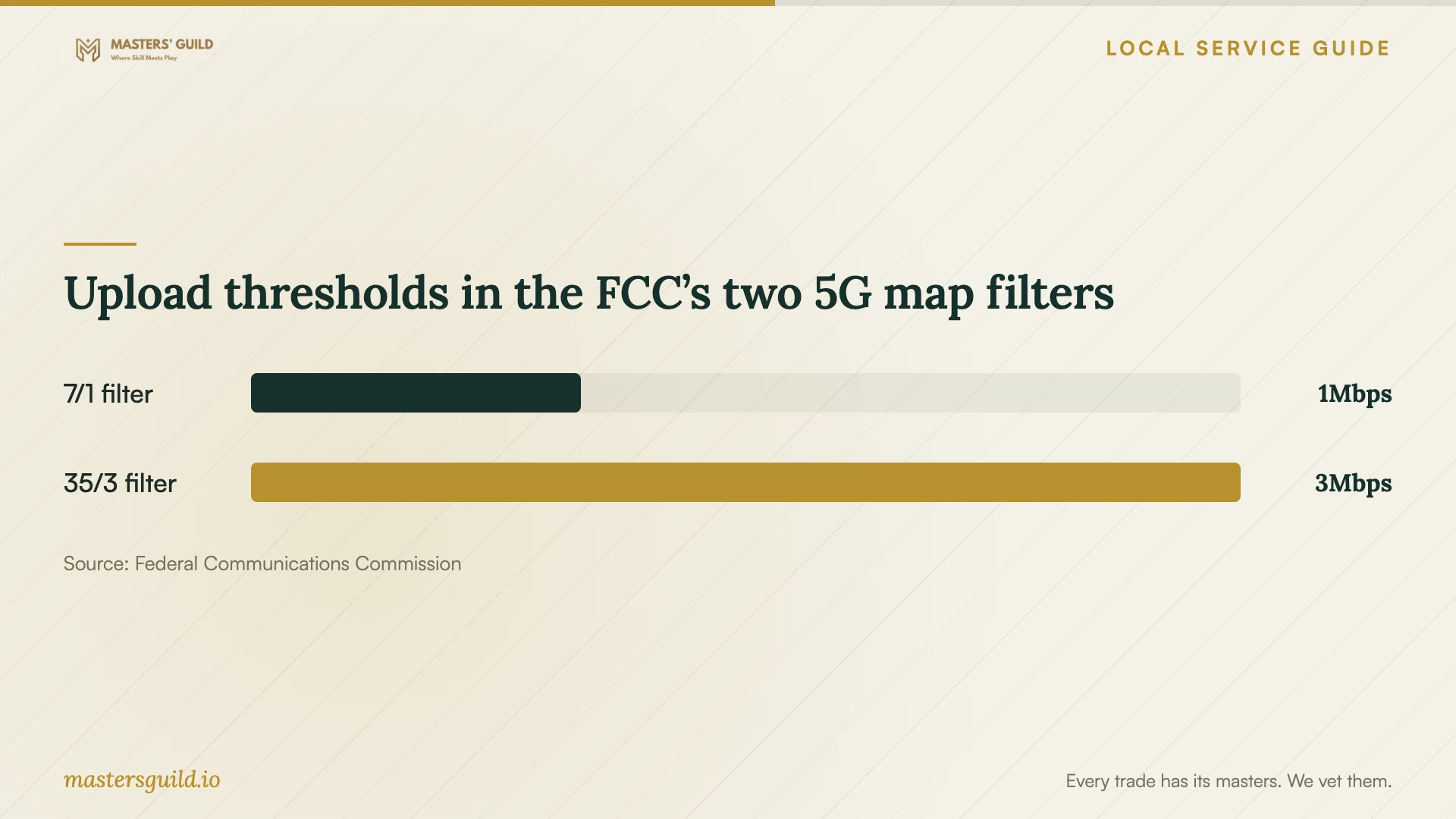
Upload thresholds in the FCC’s two 5G map filters
Local details that affect your job
SDG&E notices affect the appointment window
For a home served by SDG&E, update contact details and notification preferences in My Energy Center before arranging a large transfer. SDG&E provides advance notices and a reminder the day before a planned outage. Review the notified window with your technician and choose another time or agree a pause-and-resume plan if it overlaps the work. [1]
Confirm regional assistance through 211
SANDAG’s Get Connected page lists free technology classes, one-on-one support, and library connectivity resources for the San Diego region. The page also contains an outdated warning projecting ACP funding depletion in April 2024. Treat it as a referral starting point. Ask 211 to confirm current services for your Chula Vista address, eligibility, appointments, and whether the assistance covers your task before paying for basic setup help or relying on a program. [3]
Match the work to your household task
| Your situation | Suggested next step | Acceptance check |
|---|---|---|
| You need basic account or device help | Ask 211 to confirm current options from SANDAG’s regional referrals; its page contains outdated information | Confirm eligibility, availability, and coverage of your task |
| You want files accessible across household devices | Request setup on named devices with agreed permissions | Open a sample file through each intended account |
| You are moving an existing file collection | Request an inventory, destination review, and transfer follow-up | Review copied files and unresolved errors before removing originals |
| You want a recoverable backup | Include a retrieval demonstration in the quote | Open a restored sample in a separate location |
| Your appointment overlaps an SDG&E planned outage | Review the notified window and agree another time or an interruption plan | Check transfer completion after power returns |
Your hiring checklist
- List included devices, accounts, source folders, and the destination.
- Record file volume and identify files to exclude.
- Measure the upload connection you intend to use.
- Review utility notices before choosing the transfer window.
- Compare written labor, subscription, hardware, and follow-up charges.
- Keep account ownership and recovery contacts under your control.
- Agree who will monitor uploads after the appointment.
- Check copied files and observe a recovery demonstration before approving completion.
Frequently Asked Questions
Can I arrange remote setup?
Ask whether the technician can complete your listed tasks remotely and what you must do at the device. Agree how you will enter credentials, review access, and observe the recovery test. Include any help you need connecting equipment or handling local files in the request.
How much time should I book?
Request separate estimates for the attended appointment and transfer completion. Give the technician your file volume and measured upload result. Agree on a follow-up check if uploads continue after the appointment, including who monitors progress and handles errors.
Can a phone hotspot cover an interrupted upload?
Test the hotspot at home and check your mobile plan’s data allotment before relying on it. SDG&E advises checking allowances when using a hotspot during an outage. The FCC’s mobile map covers outdoor or in-vehicle reception, so it cannot establish reception inside your home. [1] [2]
What should I receive at handover?
Request account ownership details, included devices and folders, permission settings, recurring charges, unresolved errors, and recovery instructions. Have the technician demonstrate access and retrieve a sample file. Agree on a review date for unfinished transfers and remove any temporary technician access.
Sources and scope
This guide combines the sources below with practical planning guidance. Figures apply to the stated geography and period; request a written quote for your property.