
Local service guide
Software installation in Charlottetown, PE
For software installation in Charlottetown, choose a technician who will quote for your named programs and devices, explain any software purchase, and demonstrate the finished setup. Compare written quotes for the same work. Choose remote or in-person help based on the assistance you need, and resolve account access before the appointment.
Get a quote for a specific result
Describe the job through an everyday task: use a purchased application, configure email or move your working setup to a replacement computer. Include the device model, operating-system version, application name and any error message. Ask the technician to assess compatibility before you commit to a purchase or system change.
Request a quote that identifies installation, configuration, file transfer and troubleshooting as separate tasks where relevant. Ask whether the provider charges a fixed amount or bills for time, whether a minimum charge applies, and what you owe if they cannot complete the work. Compare the total payable amount, including any travel, tax and follow-up charges.
Agree on an approval point for extra work. The technician should explain the proposed change and cost before exceeding your budget, deleting files or buying a subscription. Specify which existing programs you need to keep working, particularly if you use the computer for both personal tasks and business records.
Prepare the account and files the technician will use
Gather your receipt or subscription details and identify the account that should own the installation. Keep billing and recovery information under your control. Enter your password yourself during the appointment, and agree on which folders the technician may access.
Before an operating-system change or file transfer, make a backup and open several important files from it. Ask the technician to preserve the originals until you have checked the copies. Decide where transferred documents belong so you can find them after the appointment.
For devices holding business records, the Canadian Centre for Cyber Security recommends backing up essential information, checking restoration, and encrypting backups with restricted access. If this applies to your home computer, include those requirements in the work rather than treating a file copy as the entire recovery plan. [1]
Match the appointment to the help you need
Discuss remote help if you can start the computer, connect to the internet and stay present during the session. Choose an in-person appointment if you want someone beside you to connect storage drives, handle devices or walk through the setup. Ask how the technician will continue if the connection drops or a restart interrupts access.
For remote work, ask which access application the technician plans to use and whether they intend to retain access afterward. Close banking pages and unrelated personal documents before the session. Include removal or disabling of temporary access in the handover agreement.
A warning about anti-virus software needs a separate identity check before you arrange access. The PEI RCMP case described below gives you a reason to verify the claimed company through a trusted contact route. [3]
Specify the security setup and handover
Ask what update and security settings the technician will review. For small and medium organizations, the Cyber Centre recommends automatic updates where available, anti-malware that updates and scans, and an active software firewall or a documented alternative. It also recommends considering replacement of products whose vendors have ended support. [1]
If you depend on business software, discuss compatibility before changing its update settings. The Cyber Centre acknowledges that automatic patches can have unexpected side effects and advises organizations to assess the trade-off. Agree on a recovery approach for any change that could interrupt your work. [1]
Define a completion test before work starts. For document software, open a representative file, save a change and reopen it. For email, send and receive a message. Include printers and transferred folders only when you have put them in the scope. Request handover notes covering installed programs, the account used, unresolved issues and follow-up terms.
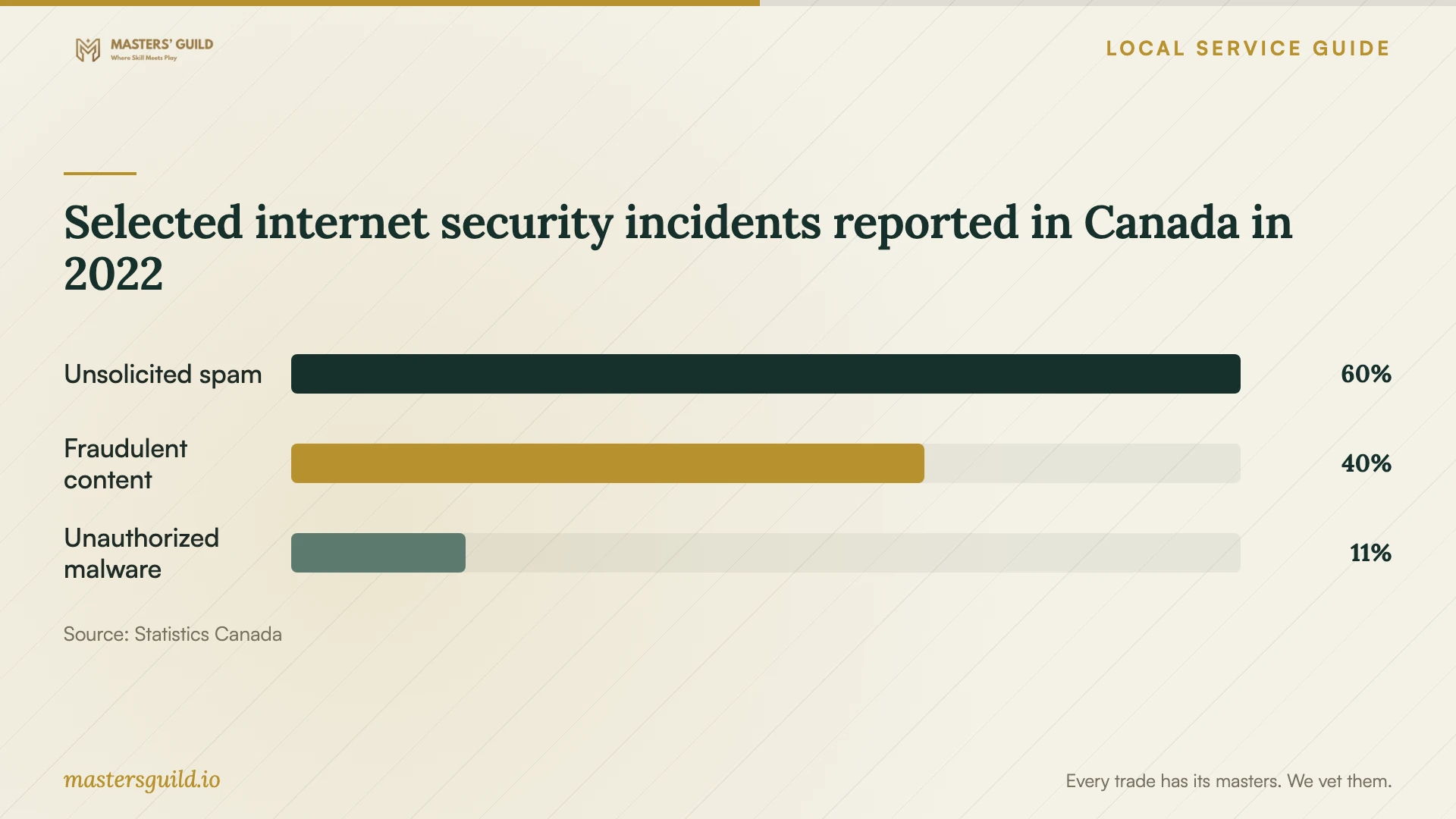
Selected internet security incidents reported in Canada in 2022
Local details that affect your job
UPEI users should resolve sign-in problems first
UPEI gives account holders access to Microsoft 365 and requires multi-factor authentication for most services. If you cannot sign in, use UPEI Account Recovery Assistance before paying for university-service setup; the regular Help Desk form may require sign-in. Students can contact the Robertson Library service desk at 902-566-0583. ITSS lists support hours as Monday to Friday, 8:00 am to 4:00 pm Atlantic Time. Confirm your software entitlement before buying a licence. [2]
PEI's documented support scam changes how you verify help
In its December 23, 2025 warning, PEI RCMP described an anti-virus email that directed a victim to call a number. The scammer requested remote computer access in an attempt to reach online banking. If an unexpected message prompted your search for help, contact the claimed company using verified details rather than the message's number. The RCMP advises anyone who believes a scam targeted them to report it to police and the Canadian Anti-Fraud Centre. [3]
Choose the right starting point
| Your situation | Starting point | Question to settle |
|---|---|---|
| One application, with a working account | A defined installation appointment | Which task will demonstrate completion? |
| Locked out of a UPEI account | UPEI Account Recovery Assistance | Can you complete authentication before setup? |
| Unexpected anti-virus message requesting a call | Verify the claimed company through trusted details | Did you initiate contact with the actual company? |
| Replacement computer with files to move | An installation and transfer scope | Which originals must remain until you check the copies? |
| Computer holding essential business information | Backup and restoration planning | Who can access the encrypted backup? |
Your hiring checklist
- Send the device details, application names and task list with your quote request.
- Check labour, purchases, extra-work limits and the total payable amount.
- Confirm account access and prepare your authentication device.
- Back up important files and open sample copies.
- Verify the agreed technician before granting remote access.
- Perform the completion test yourself and collect handover notes.
Frequently Asked Questions
Can I try installing an application myself?
Consider doing it yourself if you understand the publisher's instructions, can access your account and feel comfortable with the requested permissions. Ask for help if you cannot judge a proposed system change or need someone to preserve an existing setup. Stop before approving changes you do not understand.
Does UPEI account access confirm which software I can install?
UPEI states that its account gives access to Microsoft 365. Confirm the installation and licence options available to your account before purchasing software or asking a technician to install a specific desktop application. [2]
Should I replace my phone before configuring UPEI services?
Keep Microsoft Authenticator on the old phone until you confirm authentication works on the replacement. UPEI advises using Account Recovery Assistance if you cannot use any registered verification method. Its ITSS staff will never ask you to provide your password. [2]
How should I handle an installation that remains unfinished?
Ask for a written account of what the technician completed, what blocked progress and what the next attempt would cost. Keep any software receipt and agree on responsibility for follow-up before authorizing another session.
Sources and scope
This guide combines the sources below with practical planning guidance. Figures apply to the stated geography and period; request a written quote for your property.