
Local service guide
Charlotte, NC software installation
For software installation in Charlotte, choose a technician who agrees in writing on the programs, devices, account access, backup responsibilities, and completion tests before starting. Ask for a total that separates labor, software purchases, and applicable tax. For remote work, contact a provider you have checked yourself; North Carolina’s Department of Justice warns against granting access in response to unsolicited tech-support messages. [3]
Define the installation before requesting a quote
Give the technician your computer model, operating system, program names, and the task you want to complete. Say whether you already own the software, need a new subscription, or want help choosing a version. Include the exact error message if an installation has failed, but remove personal information from any screenshot you share.
Ask the technician to distinguish application setup from operating system work, file transfer, account recovery, and troubleshooting. Have them list the work they intend to perform and the work that would require another approval. For example, an email setup request should specify whether you also want old messages, contacts, and calendars transferred.
Choose how the technician will access your computer
For remote service, ask how you will identify the technician, approve the connection, watch the session, and end access. For an in-home visit, agree on the arrival window and prepare a place where you can stay with the device. For drop-off service, request an intake record and agree on how the shop will contact you before changing the scope.
NCDOJ warns that a scammer with remote access can reach information on your computer and connected network, including password-protected information through malware. Its guidance applies across North Carolina, including Charlotte. Start the contact yourself and verify the provider before allowing access. Do not treat a caller’s claimed company name as proof of identity. [3]
Compare the full charge, including tax
Request an itemized quote covering labor, software or subscriptions, travel or drop-off charges, backup work, and follow-up support. Ask whether the provider charges a fixed amount or bills for time, and agree on a spending limit before troubleshooting begins. Request approval before the technician purchases software or adds work.
North Carolina’s Department of Revenue says retail repair, maintenance, and installation services involving covered property are taxable unless a statutory exemption applies. It also says retailers must include installation charges in the taxable sales price even when they state those charges separately. Ask the provider to explain the tax treatment of your particular software and service transaction. [1]
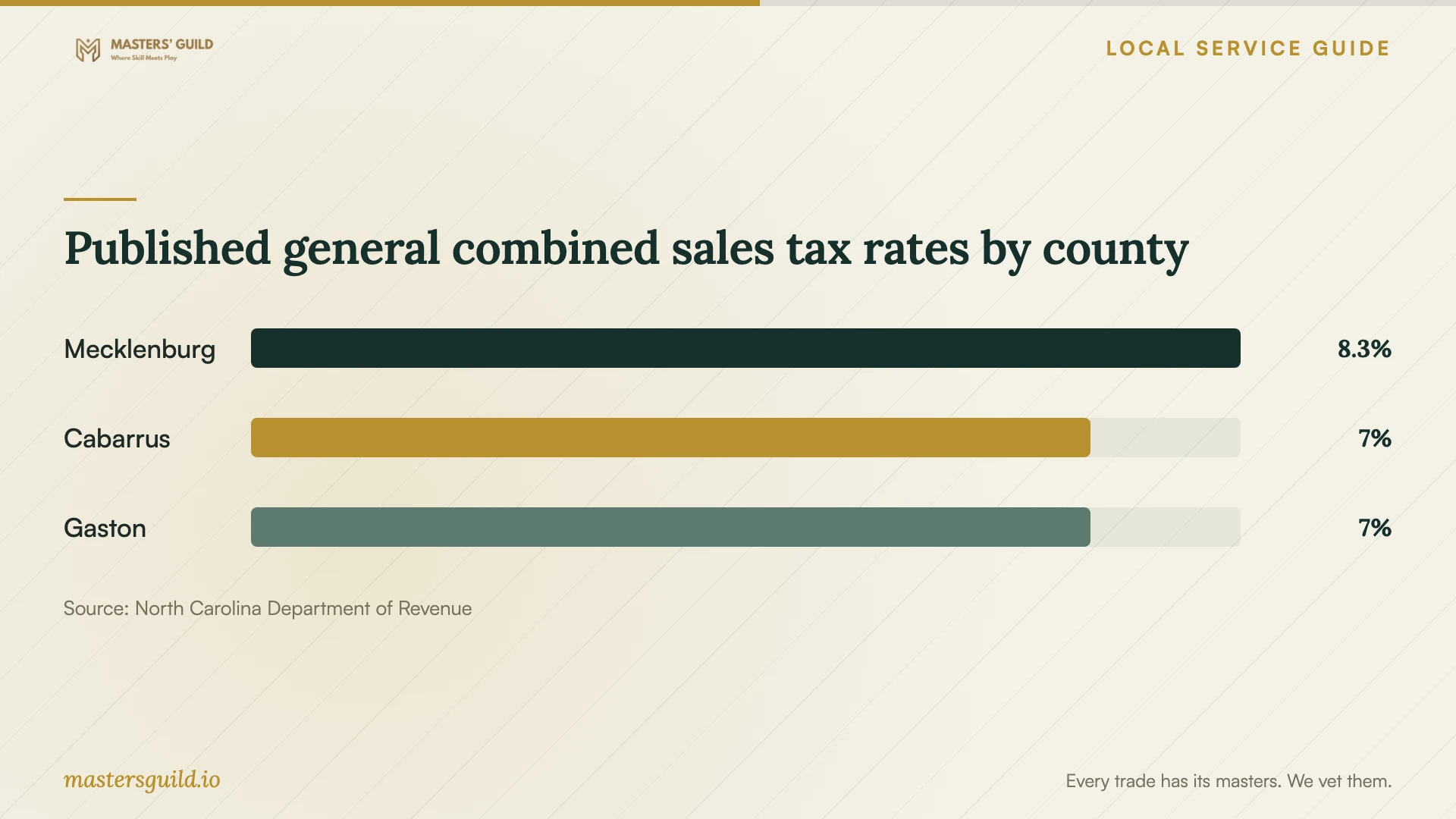
NCDOR lists Mecklenburg’s general combined rate as 8.25%, and lists Cabarrus and Gaston at 7.00%. Use the county comparison to check the rate on a quote, rather than assuming that a provider’s office address determines your transaction’s tax. Ask which county the provider used and how they determined where to source the sale. [2]
Prepare your files and accounts
Make a backup of the files you want to keep and confirm that you can open a file from that backup. Tell the technician where it is and agree on whether backup verification forms part of the job. Before approving operating system work or removal of an existing program, ask what files, settings, and saved information you will need afterward.
Have your software purchase record and account recovery method available. Enter passwords yourself where possible, and do not include passwords in a job description or send them by email or text. Ask the technician to explain any request for administrator access before you approve it. Keep purchases and recovery details in an account you control.
Test the result before closing the job
Ask the technician to demonstrate the task you agreed on. Open the program, check its activation status, and try a representative file or email action. If the job includes a restart, repeat the test afterward. Request a written record of what they installed, what they changed, and any remaining issue.
Confirm how to request help if the agreed test fails after the visit and whether that help carries another charge. Ask the technician to remove or disable session access you no longer need. Keep the invoice, purchase receipts, and setup notes together so you can explain the work to a future provider.
Published general combined sales tax rates by county
Local details that affect your job
Check the current Mecklenburg tax on your quote
NCDOR reports that Mecklenburg added a 1% local sales tax on July 1, 2026, bringing its general combined rate to 8.25%. For a taxable transaction sourced to Mecklenburg, ask the technician to use the current rate and identify the taxable charges before you approve the total. Confirm any claimed exemption rather than assuming all computer work receives the same treatment. [1] [2]
Use North Carolina’s response steps after suspicious access
Charlotte residents can use NCDOJ’s statewide consumer complaint route if a supposed technician obtains access through a scam. NCDOJ lists 1-877-5-NO-SCAM for reporting. It advises updating security software, running a scan, and deleting identified threats after scammer access. If you disclosed a password, change it and change it on other accounts where you reused it. Arrange that response before granting another installation session. [3]
Match the arrangement to your situation
| Your situation | Arrangement to discuss | Question before approval |
|---|---|---|
| A working computer needs an application | A supervised remote session or visit | Can we test the task I need before ending the session? |
| The job includes operating system changes | A separate scope with backup and recovery steps | What will you preserve, and what must I restore afterward? |
| You want files moved from another device | Installation plus an explicit transfer scope | Which files and settings will you move and verify? |
| An unsolicited caller or pop-up offers a fix | Do not grant access; verify help through a trusted provider | Did I initiate this contact through a provider I checked? |
Your hiring checklist
- List the devices, programs, and exact tasks you want completed.
- Share operating system details and error messages without exposing personal information.
- Confirm ownership of software purchases and subscriptions.
- Back up important files and check that you can open them.
- Agree on access, scope changes, and a spending limit.
- Request an itemized total and an explanation of applicable tax.
- Test the agreed tasks and collect setup notes before closing the job.
Frequently Asked Questions
How much should I budget?
Request an itemized quote for your devices, programs, and required work. Ask the technician to separate labor from software purchases and subscriptions, and confirm whether troubleshooting, travel, backup work, and follow-up support cost extra. Compare totals for the same scope and agree on a spending limit before work begins.
Should I give the technician my password?
Plan to enter it yourself and remain present for account access. NCDOJ advises against sharing passwords. Ask the technician how they can complete the job while you retain control of sign-ins and recovery details. [3]
Does a separately listed installation fee avoid sales tax?
NCDOR says installation charges remain part of the sales price even when a retailer lists them separately. Ask the provider to determine the treatment of your specific transaction, including any applicable exemption. [1]
Sources and scope
This guide combines the sources below with practical planning guidance. Figures apply to the stated geography and period; request a written quote for your property.