
Local service guide
Cloud Service Setup in Chandler, AZ
Arrange Cloud Service Setup by getting an itemized written quote for your accounts, devices, file transfers, sharing permissions, and recovery checks. Keep account ownership and billing under your control, and agree on a restore demonstration for backup work. Before scheduling a migration around new fiber service, confirm availability at your address: Chandler says availability depends on where providers have completed construction. [1]
Define the work before comparing quotes
Give each technician the same brief. List your computers and phones, existing accounts, file locations, and intended users. Specify whether you want shared household folders, a transfer from another account, or backup configuration. Include any devices you want to keep using without changing their current folder arrangement.
Compare itemized written quotes for those tasks. Have the technician separate labor, subscriptions, repeat visits, and follow-up support. Set out who will handle failed uploads, duplicate files, and sign-in problems. If the technician proposes an ongoing subscription, confirm who owns it, who pays for it, and how you can cancel it.
Choose remote or in-home help according to the work. Have the technician explain how they would access the agreed devices remotely. Consider an in-home appointment if you need help finding files across physical devices or want someone beside you while you practice the recovery steps.
Confirm the connection before scheduling a migration
The City of Chandler directs residents to submit their address to each provider to check availability. The city describes fiber construction as a phased process that can take weeks to months, with availability varying by neighborhood according to completed construction. Obtain service activation confirmation from your provider before committing to an appointment that depends on the new connection. [1]
Have the technician check your current upload connection and explain how they will handle an interrupted transfer. Agree on whether uploads may continue after the appointment, who will monitor them, and how you will confirm completion. Keep original files until you have checked the transferred copies.
Keep account ownership and access under your control
Create or sign in to the account yourself. Use recovery details you control, and have the technician explain the available sign-in protections. For remote help, agree on the access method and which files the technician may open. Include access removal in the handover and document any continuing access you authorize.
Treat account credentials as sensitive information. Arizona’s Attorney General explains that the state’s data-breach law includes a username or email address combined with a password or security question and answer that permits online-account access. Enter credentials yourself where possible and leave them out of the job description. [3]
If you run a business from home, identify customer or employee records before arranging a transfer. The Attorney General says the law imposes requirements on people conducting business in Arizona who own, maintain, or license unencrypted and unredacted computerized personal information, subject to exemptions. Request a separate scope for business records and seek advice on applicable obligations. [3]
Check the result before accepting the handover
Agree on completion checks before work starts. Open a transferred file, find an agreed folder on another device, and test access with the intended household member’s account. Review who can view or edit shared folders. For backup work, have the technician restore an agreed sample and document which folders they included.
Keep a short handover record with the account owner, subscription details, configured devices, included folders, and unresolved issues. Practice the steps for recovering a file and review what happens when you delete one. Record any unfinished uploads, who will check them, and the support period and charges you agreed to.
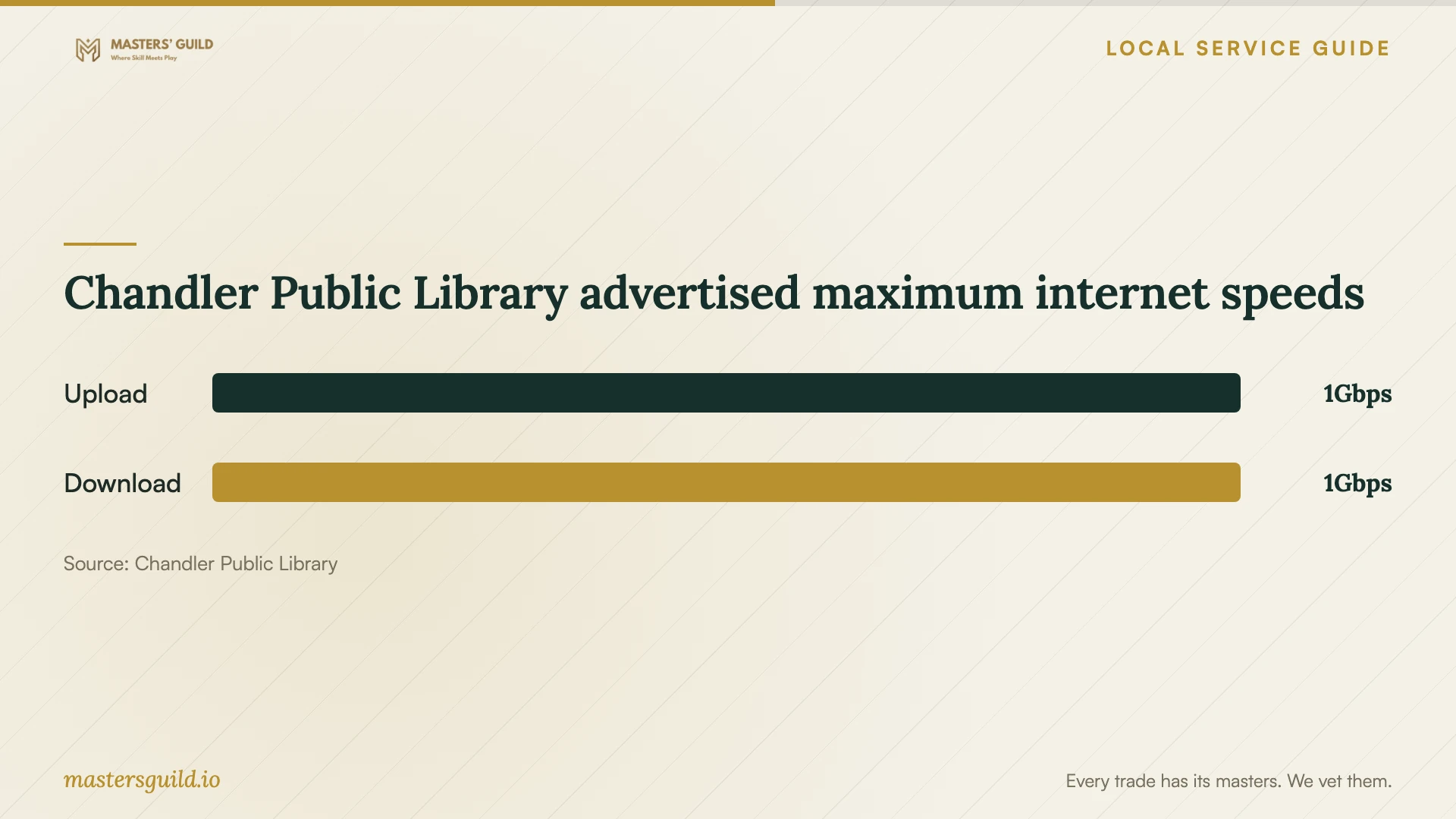
Chandler Public Library advertised maximum internet speeds
Local details that affect your job
Use fiber notices to start checking availability
Chandler requires providers to place door hangers at affected homes at least seven days before fiber construction begins. The city does not select or endorse a specific fiber provider. Use a construction notice to begin checking options with providers, then confirm address-level availability and activation before arranging a cloud migration. [1]
Prepare for library scanning and computer access
Chandler Public Library provides scanning stations at each library that can send scans to email, a USB drive, or an online destination. It offers free Wi-Fi during library hours and advertises upload and download speeds up to 1 Gbps. A library card is required to use a public computer. People ineligible for a free card can request a guest pass, limited to one per day and 60 minutes. Regular computer sessions start at 60 minutes and may extend if nobody is waiting; guest passes do not extend. Extensions may be unavailable within 25 minutes of closing. Plan your visit around those rules, check any restrictions relevant to your task, and sign out before leaving. [2]
Choose the scope that fits your files
| Your situation | Work to request | Acceptance check |
|---|---|---|
| One device and an existing account | Account review and selected-folder configuration | Open the intended files and confirm recovery details |
| Files spread across household devices | File inventory, transfer, and device setup | Check copies on each agreed device before removing originals |
| Several household members need access | Shared-folder setup with named users | Test viewing and editing from each intended account |
| You want recoverable copies | Backup configuration and a restore demonstration | Recover an agreed sample and document included folders |
| Paper records need digitizing | Scanning preparation followed by organized upload | Check scan readability and the destination account |
Your hiring checklist
- List devices, existing accounts, file locations, and intended users.
- Identify private documents and business records before granting access.
- Confirm that your chosen internet connection is active before scheduling the transfer.
- Compare itemized quotes for the same tasks, including subscription and follow-up charges.
- Agree on recovery details, sign-in protection, and technician access removal.
- Keep original files until you have checked the transferred copies.
- Include a restore demonstration for backup work and keep a written handover record.
Frequently Asked Questions
What should I include when requesting a quote?
Provide your device list, existing accounts, file locations, intended users, and desired outcome. Specify transfers, shared folders, and backup work separately. Get itemized charges for labor, subscriptions, and follow-up support, plus written completion checks.
Can I book a migration while crews install fiber nearby?
Confirm service first. Chandler says availability varies by neighborhood according to completed construction and directs residents to check their address with each provider. Obtain activation confirmation, then schedule the migration around a working connection. [1]
Can I use a library computer to prepare documents?
Bring a library card. If you are ineligible for a free card, you can request a guest pass, limited to one per day and 60 minutes. Regular sessions start at 60 minutes and may extend if nobody is waiting; guest passes do not extend. Extensions may be unavailable within 25 minutes of closing. Check task restrictions before starting. [2]
What should count as a completed setup?
Use the acceptance checks you agreed to before work began: access on the specified devices, correct sharing permissions, and a sample restore for backup work. Keep a handover record that names the account owner and identifies unfinished uploads, follow-up responsibilities, and any authorized continuing technician access.
Sources and scope
This guide combines the sources below with practical planning guidance. Figures apply to the stated geography and period; request a written quote for your property.