
Local service guide
Boston software installation: plan your setup
Arrange software installation in Boston by giving a technician your computer model, operating system, application names, and the task you need to complete. Request a written quote covering installation, account setup, testing, and any file transfer. For help learning an installed program, consider Boston Public Library classes or Open Tech Lab appointments before hiring installation help. [2]
Define the work before requesting a quote
Write down the application name and version you want, your computer model, and whether you own a software license. Describe whether you want a new installation, an upgrade, or help with an installation that stopped. Include the error message and operating-system version. Leave passwords and personal documents out of your initial request.
Choose an acceptance test that matches your reason for hiring help. For an office program, ask to open, edit, and save a sample document. For email, ask to send and receive a test message. Include a test page if you need printing. Put these tasks in the agreed scope so both of you know what to check before ending the appointment.
Choose installation help or software instruction
Ask a technician to quote changes to your own computer and confirm experience with your operating system and requested application. If you prefer remote service, explain whether the computer starts and connects to the internet. Have the provider confirm that they can complete the agreed work remotely and explain what happens if an in-person visit becomes necessary.
For instruction, BPL offers Microsoft Office introductions, beginner computer classes on Windows 11 platforms, and one-on-one Open Tech Lab appointments. The library holds classes at the Central Library and branches. Check its calendar for the topic, location, and registration arrangements before making a trip. [2]
Confirm the scope of library assistance before bringing a laptop. BPL describes help using library services on personal devices and help finding technical support. Its technology FAQ says staff cannot configure or repair personal devices. Arrange private-device installation with a technician rather than expecting library staff to perform it. [1]
Prepare your files and account access
Back up the files you want to keep, then open a sample from the backup to check your preparation. Gather purchase records and confirm that you can sign into the software account. Ask the technician to check compatibility before removing an existing application or starting an operating-system change. Specify any files, settings, or older versions you want to preserve.
Agree on how you will enter passwords and approve account prompts during the appointment. Ask the technician to explain any remote-access application before you authorize it. Decide whether access should end with the session, and have the technician show you how to disconnect and remove access. Keep passwords out of the written completion record.
Set the budget and test the finished setup
Request a quote for your device, applications, and agreed work. Ask whether the technician charges a fixed amount or an hourly rate, and separate labor from software purchases and subscriptions. For hourly work, set a spending limit and require approval before additional work. Clarify what you would owe if a compatibility or account problem prevents completion.
Confirm that you will control the software account and understand any renewal charges. Include file migration, printer setup, or instruction in the quote if you want those tasks. Before ending the appointment, run the acceptance test, restart the computer, and repeat the task. Ask for a record of installed applications, unresolved issues, and the next step if a problem returns.
Arrange temporary computer access
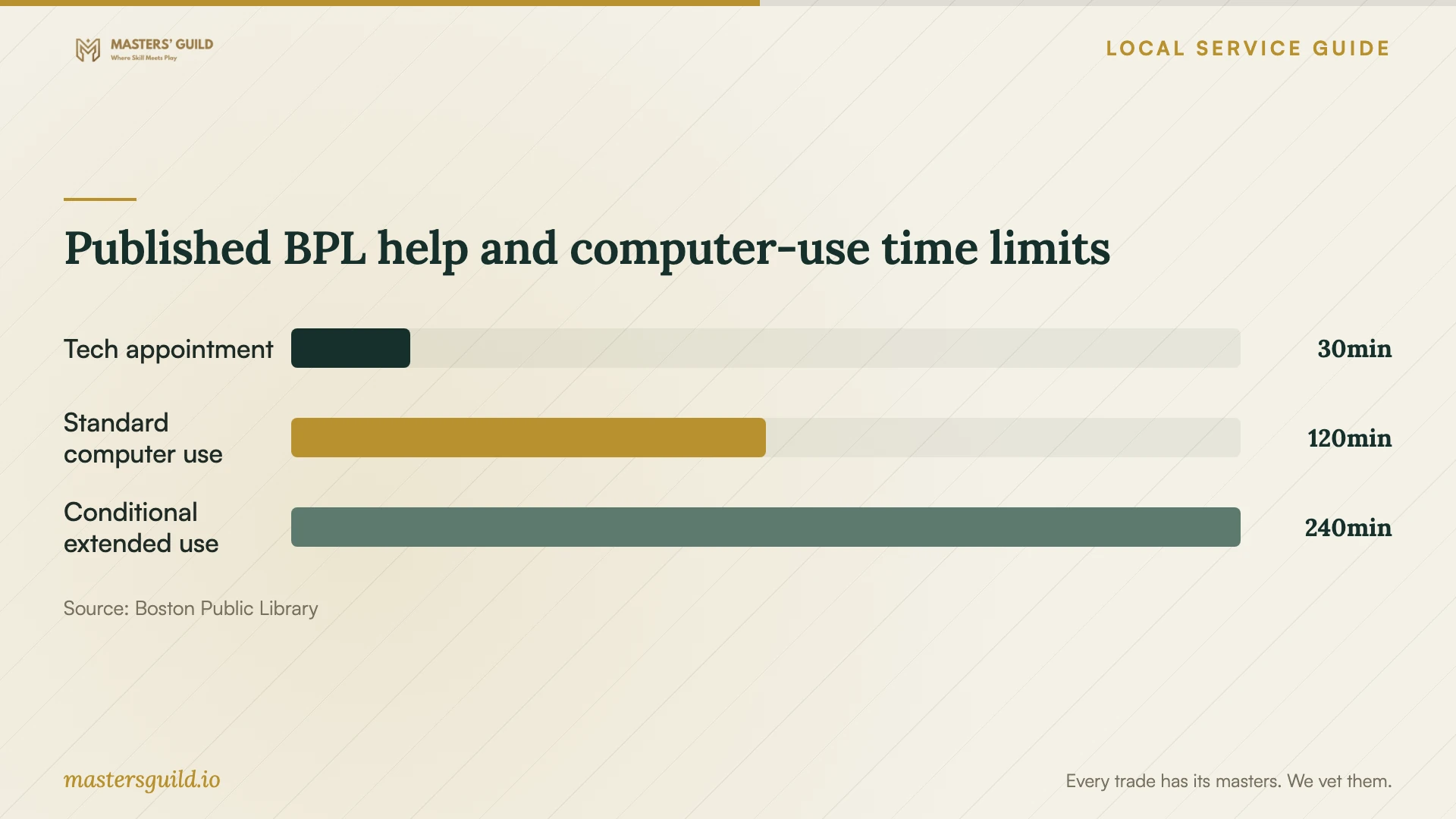
BPL lists Microsoft Office 2024, Microsoft Paint, Microsoft Edge, and VLC Player on regular patron computers. If you need to finish a document while your computer is unavailable, consider a library workstation. BPL limits computer use to two hours per day and allows extensions up to four hours when no other patrons are waiting. Plan your work around the standard limit. [1]
Save your work to your own USB device, cloud account, or email before signing out. BPL clears files, downloads, browsing history, and other session activity at sign-out. Check that you can access the saved document before leaving, and sign out of any personal accounts you used. [3]
Published BPL help and computer-use time limits
Local details that affect your job
Arrange an Open Tech Lab appointment
BPL offers 30-minute one-on-one Open Tech Lab appointments. Contact 617.859.2323 or [email protected] and describe the question you want to work on. The Central Library’s Community Learning Tech Classroom is on the Mezzanine Level of the Boylston Building. Confirm your appointment location and whether staff can address your software-learning question before traveling. [2]
Reserve an accessible workstation
BPL accepts advance telephone reservations for accessible workstations in Tech Central at the Central Library through 617.859.2255. Ask about the features you need while your own computer is unavailable. For other computers, BPL does not offer off-site reservations and directs patrons to the on-site sign-in queue. Plan your visit around that distinction. [1]
Use an updated workstation for a PDF task
On updated BPL patron computers, Microsoft Edge supports opening PDFs, completing fillable forms, and adding comments. For a one-time form, consider whether a library workstation meets your immediate need before purchasing a separate application. Save the completed document before signing out because BPL removes session files. [3]
Choose the next step for your software task
| Your need | Next step | Confirm before proceeding |
|---|---|---|
| Install or change software on your own computer | Request a technician quote | Compatibility, backup, account ownership, and acceptance test |
| Learn to use an installed program | Ask about a BPL class or 30-minute Open Tech Lab appointment | Topic, location, and whether your question fits the session |
| Complete a document while your computer is unavailable | Consider a BPL patron computer with Office 2024 | Computer access arrangements and where you will save the document |
| Use an accessible temporary workstation | Call Tech Central about an advance reservation | Required accessibility features and available reservation time |
| Complete a fillable PDF without installing an application at home | Consider Microsoft Edge on an updated BPL patron computer | Whether it handles your form and how you will retrieve the saved file |
Your hiring checklist
- List your computer model, operating system, applications, and error messages.
- Choose a sample task to use as the acceptance test.
- Back up important files and open a sample from the backup.
- Confirm software account access and gather purchase records.
- Request separate charges for labor, purchases, subscriptions, and file transfer.
- Set a spending limit and require approval for added work.
- Agree on remote-access permissions and how to end access.
- Restart, repeat the acceptance test, and collect a completion record.
Frequently Asked Questions
How much should I budget for installation?
Request a quote for your device, applications, and agreed work. Ask the technician to separate labor from software purchases and subscriptions. For hourly work, agree on a spending limit and approval for additional tasks. Clarify any charge for diagnosis if the technician cannot complete the installation.
Can Boston Public Library install software on my laptop?
Arrange private-device installation with a technician. BPL says staff cannot configure or repair personal devices. Ask the library about classes, help using its services on your device, or assistance finding technical support. [1]
Can I use a library computer without a library card?
Central Library Tech Central express computers allow 15-minute sessions without a library card or guest pass. BPL staff can issue temporary guest passes for longer sessions on other computers under the library’s access arrangements. Ask staff which option fits your visit. [1]
What should I test before the technician leaves?
Open the application, complete your agreed sample task, and save the result. Restart the computer and repeat the task. Test any email or printing setup included in the quote, review unresolved issues, and confirm that remote access ends as agreed.
Sources and scope
This guide combines the sources below with practical planning guidance. Figures apply to the stated geography and period; request a written quote for your property.