
Local service guide
Cloud Service Setup in Aurora, CO
Arrange Cloud Service Setup in Aurora by asking for a written scope that covers the files to move, account ownership, staff access, backup settings and a demonstrated restore. Before booking, have the technician assess your office connection and explain how you will keep working during the transfer. Compare quotes against the same completion requirements.
Define the work before comparing quotes
Tell each technician which outcome you need: shared working folders, an additional backup, a move from an existing service, or staff access across devices. Ask them to explain how the proposed setup handles deletion, recovery and access changes. Have them demonstrate those behaviors using a sample folder before moving business records.
Prepare an inventory of computers, phones, existing accounts and folders. Identify who owns each folder and who should have permission to read or change it. Mark records that need restricted access, and ask the technician to price any cleanup or duplicate review as a separate task.
Check connectivity at your premises
The FCC’s National Broadband Map lets you search a street address and inspect providers, connection technologies and maximum advertised download and upload speeds reported for that location. Use the entry for your office when investigating connection options. Treat the listing as provider-reported availability and confirm installation arrangements with the provider. [2]
Ask the technician to measure the connection you will use and base the transfer plan on your file inventory. Agree on when uploads may run, which devices must remain powered on and who will check for failures. For a move between services, keep the old account available until you approve the destination files and recovery test.
The FCC says its mobile coverage map describes outdoor or in-vehicle coverage and does not show indoor coverage. If you propose using cellular internet inside a shop or office, test it there before arranging a remote session or committing to a transfer schedule. [2]
Set account and data handling terms
Create the main account with a business-controlled email address. Enter your own password and recovery details, and ask the technician to use temporary access where the selected platform permits it. Request a written list of administrators, shared folders, connected devices and recovery contacts.
The Colorado General Assembly’s summary of HB18-1128 as enacted in 2018 describes written destruction and disposal policies for covered entities holding personal identifying information. It also describes reasonable security procedures for entities that maintain, own or license personal information, including those using a nonaffiliated service provider. [3]
If the migration includes customer or employee records, ask where the technician will place temporary copies, who can access them and how they will remove them after acceptance. Request those terms in writing. Ask a qualified adviser to resolve questions about your business’s current obligations before approving a retention or deletion plan.
Compare the total commitment and handover
Request separate quote lines for setup labor, migration, subscriptions, additional storage and follow-up support. Ask whether the quoted work includes failed-upload troubleshooting, staff instruction and a restore demonstration. Agree on the charge or approval process for extra devices and folders before work begins.
Choose remote help if you can sign in, connect the relevant devices and carry out the technician’s instructions. Request an onsite scope if you need someone to inspect equipment, connect storage drives or work through device access with staff. Ask each candidate to explain their experience with your chosen platform and describe their handover process.
Before signing off, open representative files from the destination, check staff permissions and restore a test file to a location you choose. Ask for a record of excluded folders, unresolved errors and remaining uploads. Assign someone in your business to review backup status and handle future access changes.
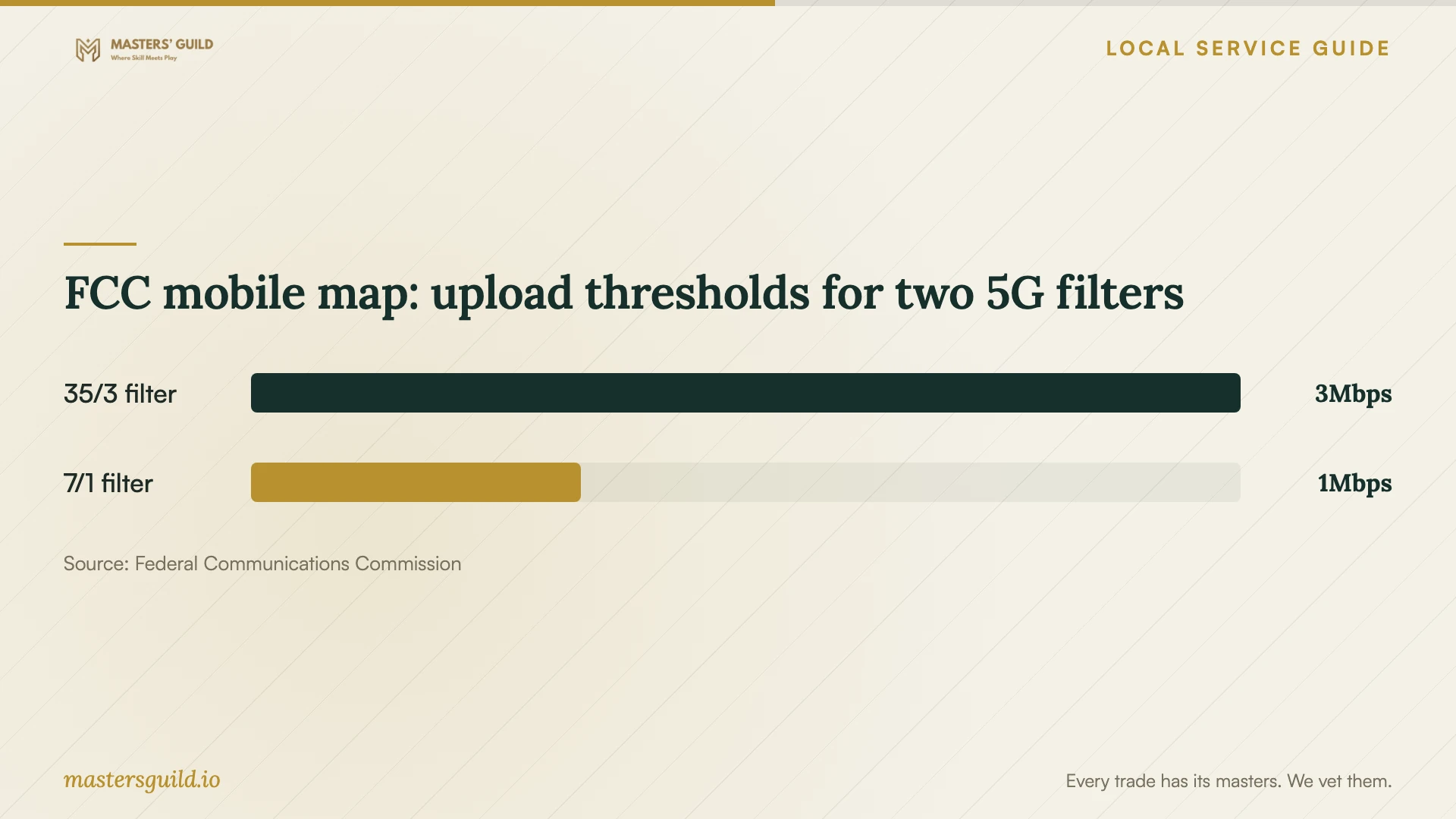
FCC mobile map: upload thresholds for two 5G filters
Local details that affect your job
Confirm Aurora library hotspot terms before planning a transfer
The city’s November 2022 announcement describes hotspot borrowing for library patrons aged 18 or older with no outstanding account fines or fees. It directs patrons to search the library catalog for hot spot or call a branch, and requires a signed policy and acknowledgment form. The announcement specifies a 14-day checkout and service disabling after that period if the device remains unreturned. Confirm current stock, eligibility and permitted business use before treating this as temporary connectivity for setup. [1]
Include Colorado data handling in the migration brief
For an Aurora business holding personal information, include security and temporary-copy disposal in the scope you send to technicians. Colorado’s summary of HB18-1128 as enacted in 2018 addresses reasonable security procedures, including when an entity uses a nonaffiliated service provider, and disposal policies for covered entities. Ask candidates to explain their handling process before granting access to live records, and have a qualified adviser confirm the obligations that apply to your business today. [3]
Choose the scope to request
| Your situation | Scope to request | Acceptance check |
|---|---|---|
| You need staff file sharing | Folder structure and individual access settings | Check that each staff member can access only the agreed folders |
| You want recoverable copies | Backup configuration and recovery instruction | Restore a test file |
| You are changing services | Migration with an agreed transition plan | Approve destination files before closing the old account |
| You hold customer or employee records | Written access and temporary-copy handling terms | Review the handling record before accepting completion |
Your hiring checklist
- List devices, accounts, folder owners and files to exclude.
- Decide who should read, edit and administer shared files.
- Confirm the connection and agree on an upload schedule.
- Keep account ownership and recovery methods under business control.
- Get written terms for temporary copies and technician access.
- Separate labor, subscription and follow-up charges in the quote.
- Approve completion after file checks, permission checks and a restore demonstration.
Frequently Asked Questions
How much should I budget?
Compare itemized quotes for the same device list, file inventory and handover requirements. Ask for labor and recurring subscription charges as separate amounts. Agree on how the technician will price extra work and obtain your approval before exceeding the scope.
Can I use a library hotspot for the initial transfer?
Confirm current availability and usage terms with the library first. Aurora’s November 2022 announcement describes a 14-day borrowing period with service disabling if the device remains unreturned afterward. Ask the technician to test the proposed connection before relying on it for the transfer. [1]
Does the broadband map confirm my office upload speed?
The FCC map lists maximum advertised speeds reported by providers for a location. It does not establish your measured office performance. Use it to investigate options, confirm service with the provider and ask the technician to test your connection. [2]
What should I receive at handover?
Request the account and access inventory, recovery instructions, backup settings, unresolved error list and results of the agreed restore test. Ask the technician to remove temporary access and explain who will monitor remaining uploads.
Sources and scope
This guide combines the sources below with practical planning guidance. Figures apply to the stated geography and period; request a written quote for your property.