
Local service guide
Software Installation in Albuquerque, NM
For Software Installation in Albuquerque, hire help for the result you need: a working application, configured email, transferred files, or a usable new computer. Describe that result and your device before arranging service. For basic instruction, consider local library support; eligible UNM households can investigate university software access before buying licenses. [1] [2]
Describe the job so a technician can price it
Give the technician your computer model, operating system, application names, and any error message. Explain whether you own the software and whether you need to move files from another device. Describe a concrete goal, such as editing household documents, using a scanner, or accessing an existing email account.
Request a written breakdown of labor, software purchases, subscriptions, travel, and transfer work. Ask whether the technician charges for time or for completion of a defined task. Set an approval limit for troubleshooting and ask who pays for a return session if activation or setup remains unfinished.
Separate local installation from UNM remote access
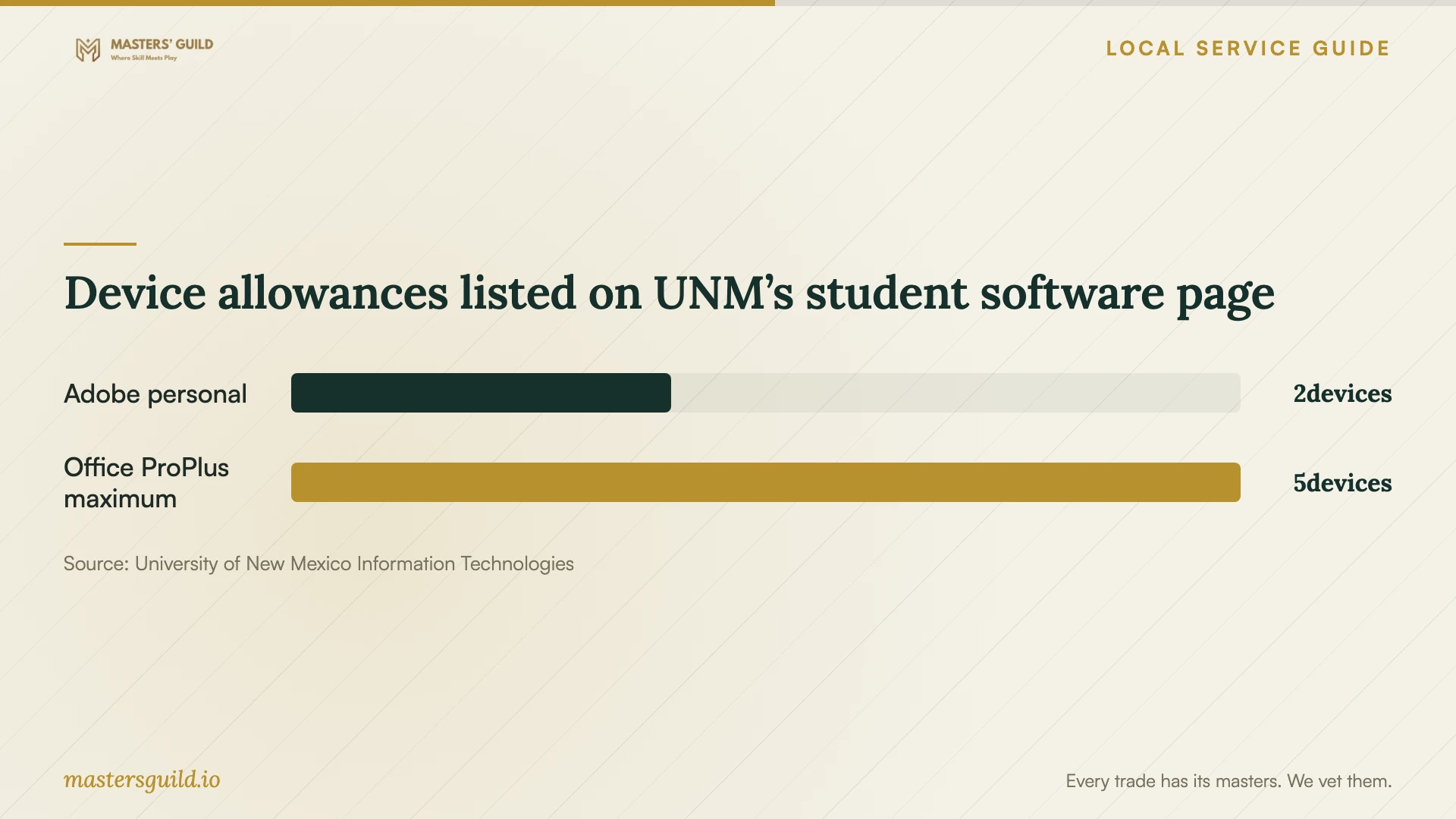
UNM's student software page lists Adobe Creative Cloud licensing at no additional cost for students registered at the Main Campus and Health Sciences Center, discounted licensing for Branch campus students, and Office 365 ProPlus access for registered students through LoboMail. The page also includes Windows 7 and 8 upgrade guidance. Ask UNM IT for current terms before treating those listings as a purchase or upgrade plan. [1]
For LoboVirtualDesktop, UNM lists eligibility for current students and active faculty and staff. Users request access before installing the appropriate client. Students and faculty using Full Desktop install Omnissa Horizon Client; staff using Remote App install Windows App. UNM runs the desktops and applications on its infrastructure, so describe this as remote-access setup when arranging help. [3]
Tell the technician which UNM access option you requested and which application you need to use. Ask them to explain how you will access your files during the session. Keep the university account under the eligible user's control and enter its password yourself where possible.
Choose the setting for the help you need
Use a library appointment to discuss basic navigation, email, or document instruction. The Albuquerque Bernalillo County library guide lists these topics at Lomas Tramway and individual assistance on a library computer or a patron's device at Juan Tabo. Describe the task to branch staff so they can tell you whether their session fits. [2]
For paid installation, ask what you must do during a remote session, including sign-in, restarting the computer, and approving access. Choose an in-home visit if you want help connecting equipment or practicing on your own setup with someone beside you. Explain any internet or account-access problem before choosing the appointment format.
Protect files and define the handover
Before approving a reinstall or removal of existing programs, back up the documents and photos you need and open a sample from the backup. Identify folders the technician must preserve. Keep recovery codes private, and ask about any remote-access software they intend to leave installed.
Agree on one useful completion test for each task. Open, edit, save, and reopen a document; send and receive an email; or launch the specialist application you requested. At handover, ask for a list of installed programs, subscription renewal responsibilities, and unresolved problems. Have the technician explain how to disconnect any continuing remote access.
New Mexico imposes gross receipts tax on businesses and includes services in its definition of gross receipts. If a business passes GRT to you, it must state the tax separately on the invoice. The tax department describes location-dependent rates and a general delivery-location rule with exceptions. Ask the provider which location and rate it used rather than applying an assumed Albuquerque rate. [4]
Device allowances listed on UNM’s student software page
Local details that affect your job
A UNM account may change your purchase plan
Before authorizing a retail Office or Adobe purchase for a student, investigate the benefits UNM lists for their enrollment and campus. For questions about the older references or current access, contact the UNM IT Service Desk at 505-277-5757. Include account setup in the job only after establishing which software the student can obtain. [1]
Bilingual instruction at Lomas Tramway
Lomas Tramway lists computer and mobile-device help in English and Spanish by appointment, including email, basic navigation, and word documents. Participants need a valid library card before the appointment. Call 291-6295 to discuss your task and arrange a session if you need instruction before deciding on paid installation. [2]
Temporary computer access through the library
The library lists public computers at all branches except Ernie Pyle. You need a valid library card with computer access enabled and should bring your card and PIN. Patrons cannot save files to public-workstation desktops or hard drives; the library directs them to bring a USB drive. Consider this option for document work while your home computer is unavailable, and check branch availability before traveling. [2]
Match the task to the service
| Task | Useful route | Boundary to clarify |
|---|---|---|
| Learn email or document basics | Library individual support | Ask whether branch staff cover your task |
| Set up UNM remote applications | Access request followed by client setup | Student and faculty Full Desktop uses Omnissa Horizon Client; staff Remote App uses Windows App |
| Install an application you own | Application installation and configuration | State whether email, printing, or other connections belong in the scope |
| Replace a computer or reinstall its system | Setup with an explicit backup and transfer plan | Identify what the technician must preserve before work starts |
Your hiring checklist
- Photograph error messages and record your device and operating-system details.
- Gather purchase receipts or account access for software you already own.
- Identify files and settings to preserve or transfer.
- Make a backup and open sample files from it.
- Prepare access to your recovery email or phone without sharing recovery codes.
- Reserve time to participate in sign-in and handover.
Frequently Asked Questions
How much should I budget?
The supplied official sources do not establish an Albuquerque installation price range. Obtain a task-specific estimate and set a spending limit for diagnosis. Ask the technician to explain any ongoing software subscription you would be purchasing.
Does the library offer general software installation?
The library guide describes classes and individual support for basic tasks and devices. It does not establish a general installation service. Ask branch staff about the particular application before bringing your computer. [2]
Should I authorize a system reinstall to fix one application?
Ask the technician to explain the diagnosis, alternatives, and effect on existing files and programs before approving that scope. Require a preservation plan for anything you need to keep, including access to software you already purchased.
Sources and scope
This guide combines the sources below with practical planning guidance. Figures apply to the stated geography and period; request a written quote for your property.