MASTERS’ GUILD CLIENT GUIDE
Welcome to the Masters’ Guild Client Guide. This guide is your comprehensive resource for navigating our job-matching platform. Learn how to post quests, review bids, and select the best professionals to meet your needs.
Masters’ Guild Client Guide: Sign-Up Process
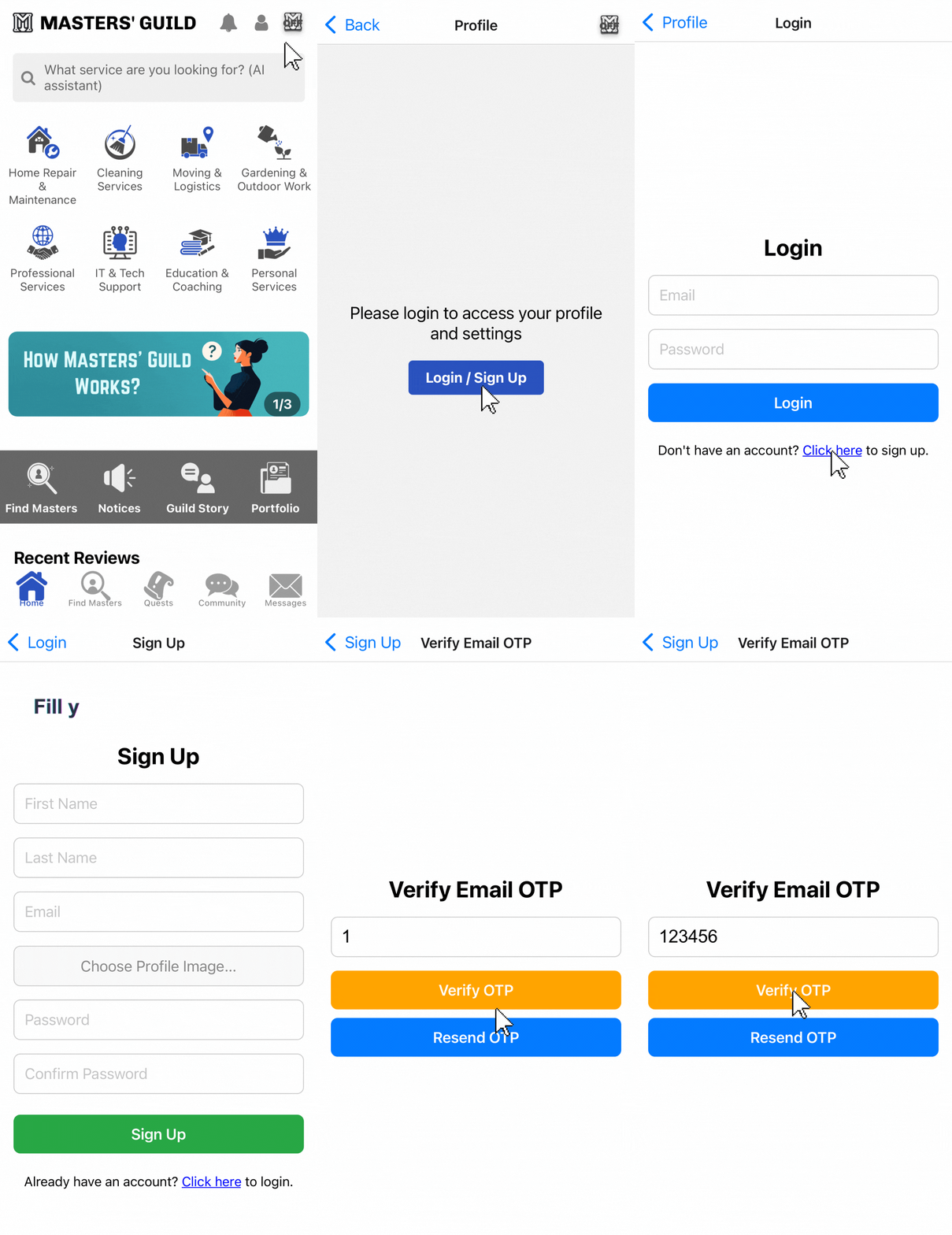
- Tap the profile icon in the top-right corner of the app’s home screen.
- Select Login / Sign Up to continue.
- Tap Click here for a new account, or log in with your registered email and password.
- Enter your name, email, profile picture (optional), and password, then tap Sign Up.
- Verify the OTP sent to your email by entering it and tapping Verify OTP.
- Your account is now successfully registered.
Requesting a Quest on the Masters’ Guild Platform (by Service Category)
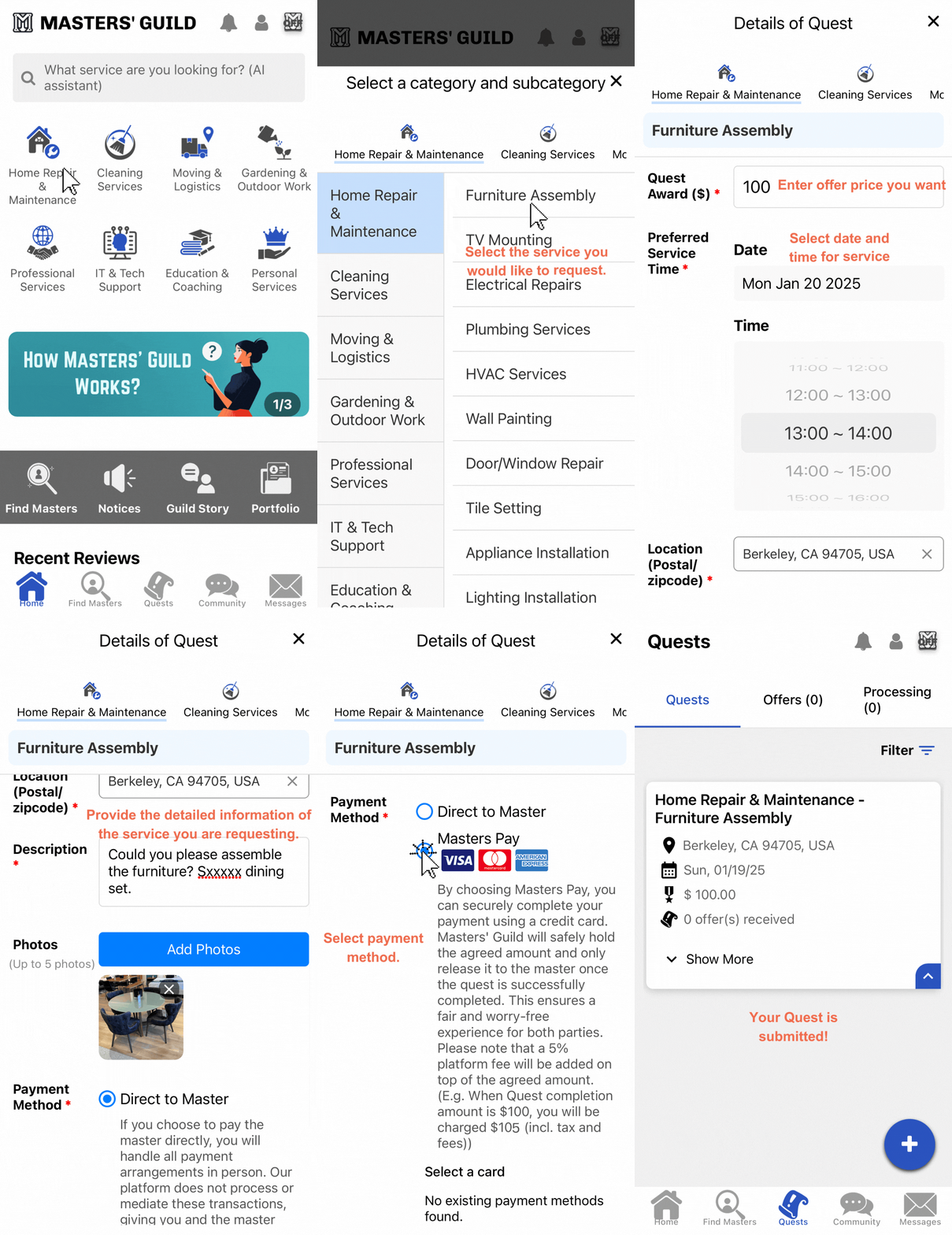
- Tap the icon for the service you want to request.
- Select the specific service from the details section.
- Enter the information for your quest request (desired amount, preferred time, approximate address, detailed description, photos, payment method). Providing detailed information will help ensure smooth coordination with the Masters.
- Click the Submit button to complete your quest request.
Requesting a Quest on the Masters’ Guild Platform (by serching for Masters)
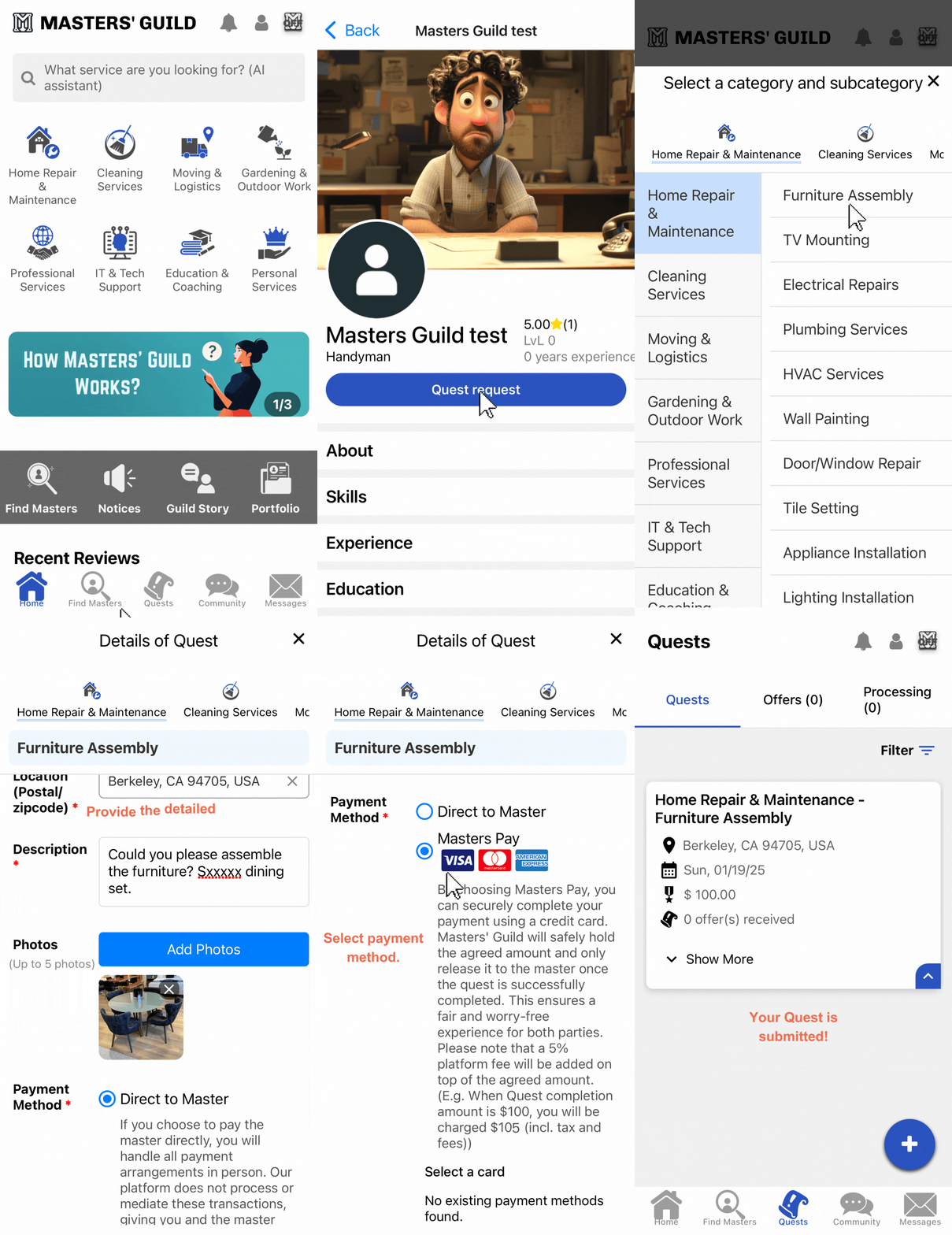
- Tap the Find Masters icon in the bottom of the app’s home screen.
- Use the search options to find the desired Master or select from the list.
- Click the Quest Request button.
- Select the specific service from the details section.
- Enter the information for your quest request (desired amount, preferred time, approximate address, detailed description, photos, payment method). Providing detailed information will help ensure smooth coordination with the Masters.
- Click the Submit button to complete your quest request.
Masters’ Guild Member Selection and Communication
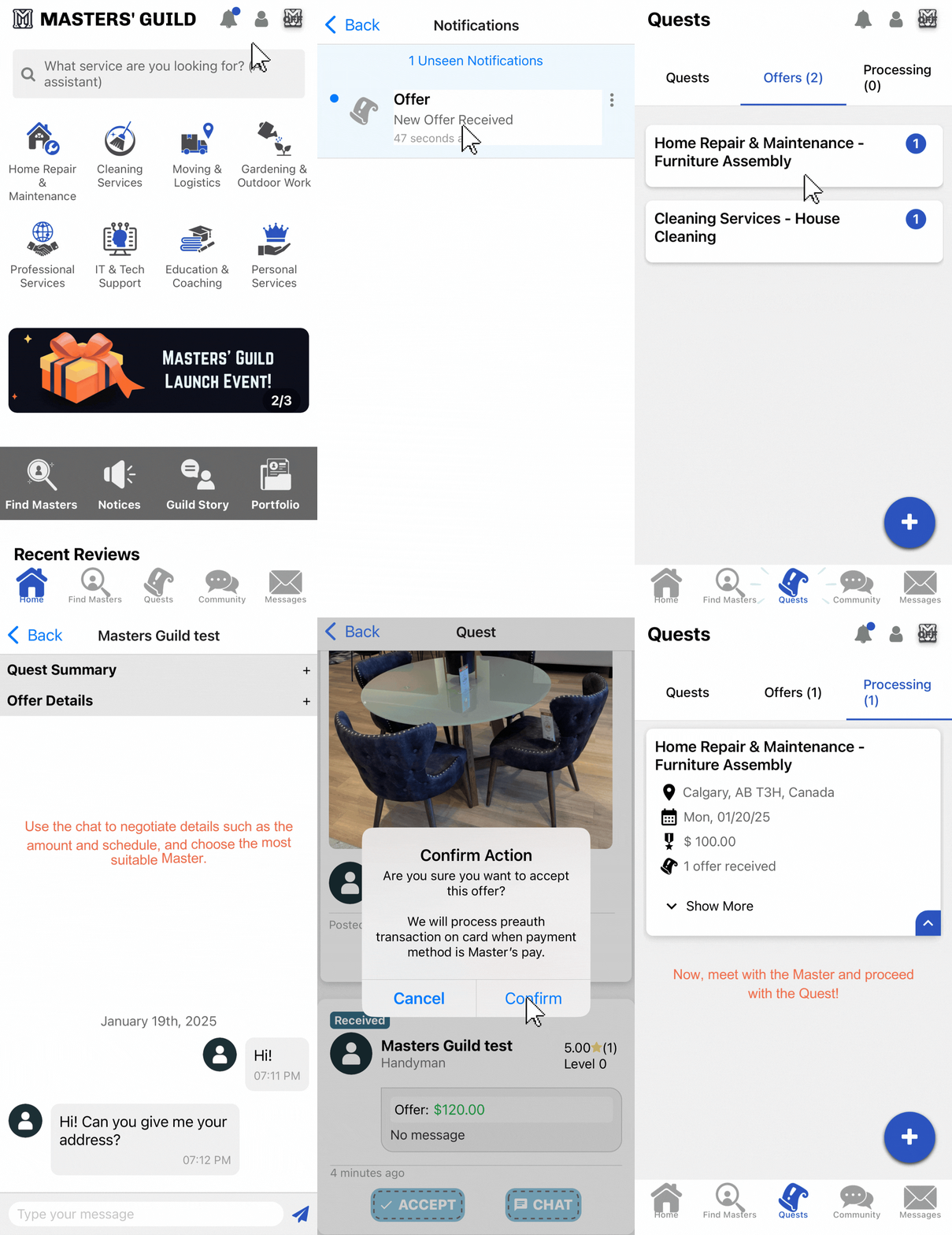
- You can check the offers you received through notifications.
- You can also view the received offers in the “Offers” tab under the Quest menu at the bottom of the home screen.
- Negotiate the amount and schedule with the Masters through chat.
- Choose the offer you like the most and click the accept button.
- Now, meet with the Master and proceed with the Quest!
Quest Completion and Reviews
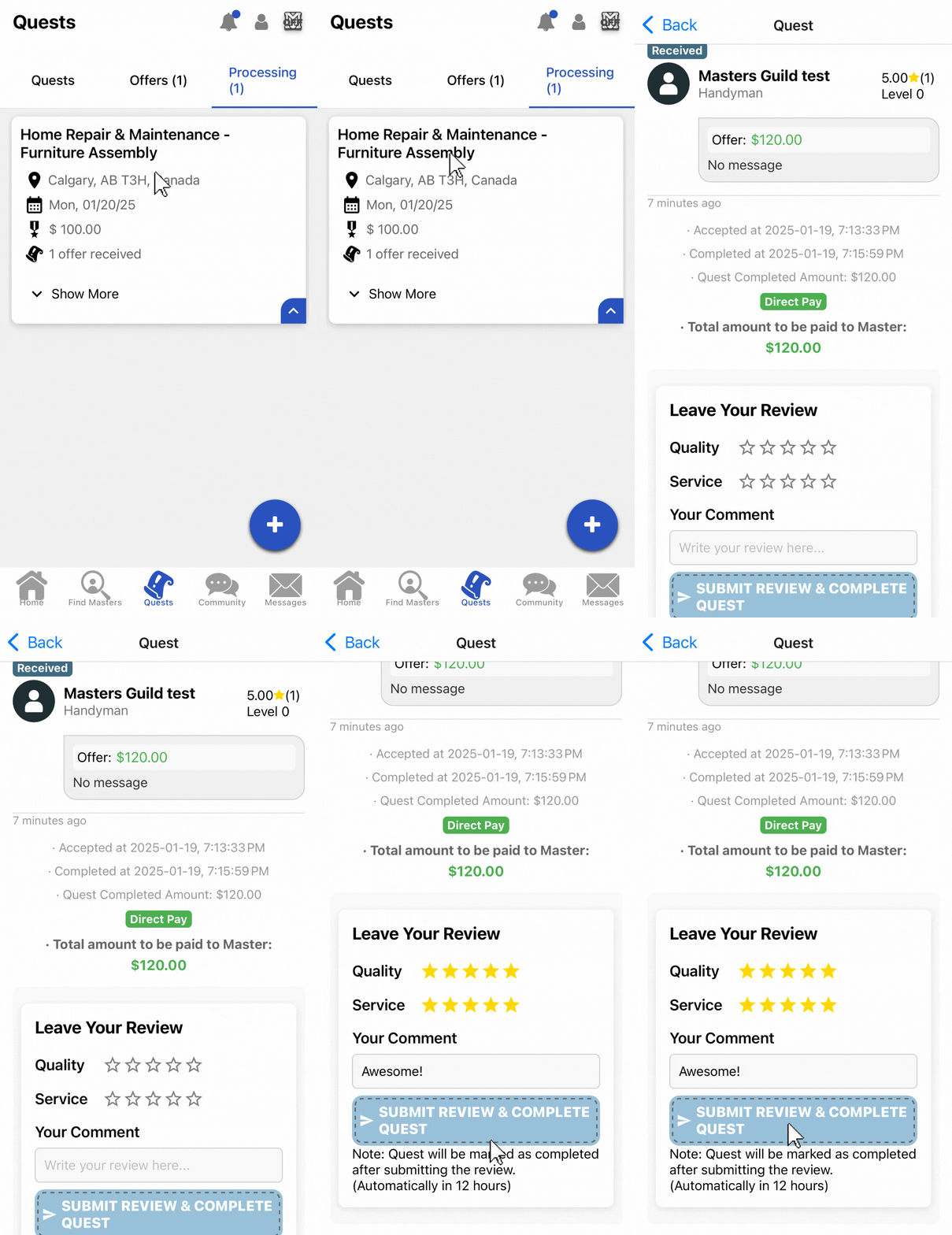
- Press the “Quests” button at the bottom of the app and select the “Processing” tab to view ongoing quests.
- Once the Master completes the task, he or she will enter the final amount and send a completion request. Make sure all details are correct.
- If there is an issue, request the necessary changes through chat with the Master.
- Once everything is confirmed, leave ratings and review, and click the “Submit Review & Complete Quest” button.
- Now, the process is complete. If you used Masters Pay, you can find the receipt in the profile tab. If you paid directly, please ask the Master for the receipt.